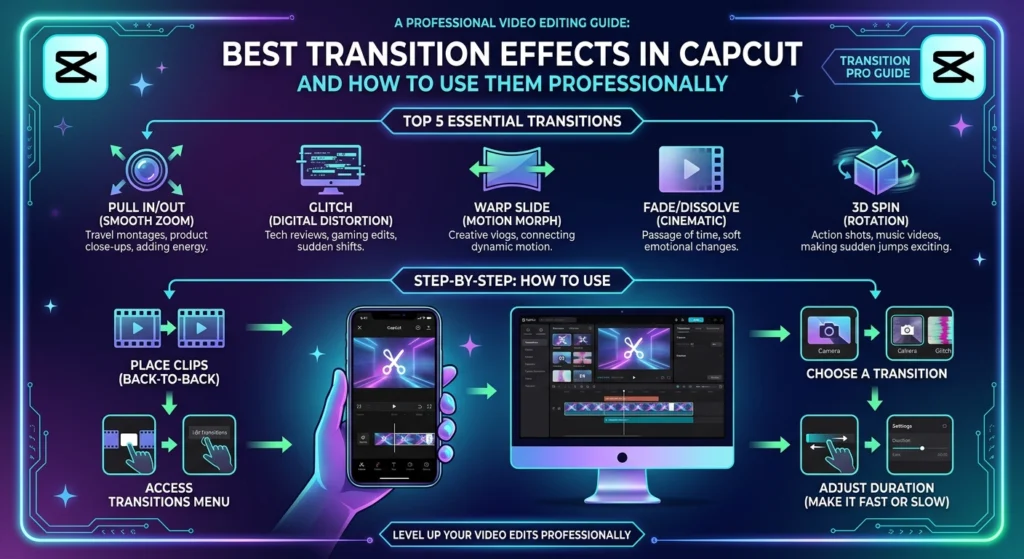
Best Transition Effects in CapCut and How to Use Them Professionally
If you’ve ever watched a smooth, cinematic video and wondered “How do they make those seamless transitions?” — the secret is professional transition effects.
With CapCut, you can create movie-level scene transitions right from your phone or PC — no advanced editing skills required.
In this guide, we’ll explore the best transition effects in CapCut, how to use them like a pro, and expert tips to make your edits stand out on TikTok, YouTube Shorts, or Instagram Reels.
🎬 What Are Transitions in CapCut?
Transitions are visual effects that connect one video clip to another, creating smooth scene changes instead of harsh cuts.
CapCut offers dozens of built-in transitions for every mood and style — from cinematic fades to energetic motion flips.
There are mainly 3 types of transitions in CapCut:
- Basic transitions – Fade, Slide, Zoom, etc.
- Camera transitions – Spin, Pull-in, Shake, etc.
- Dynamic transitions – Flash, Blur, Glitch, and 3D effects
📱 How to Add Transitions in CapCut (Mobile)
Follow these simple steps:
- Open CapCut and import your clips.
- Place two clips on the timeline.
- Tap the white transition box between clips.
- Browse transition categories like:
- Basic
- Camera
- Effect
- Overlay
- 3D Zoom
- Tap your favorite transition → adjust duration → tap ✅ to apply.
💡 Pro Tip: Keep transitions under 1 second for short videos (like Reels and Shorts) and 1.5–2 seconds for cinematic edits.
💻 How to Add Transitions in CapCut Desktop (PC)
Using CapCut on PC gives you more precise control over keyframes and effects.
- Open CapCut for PC and drag clips onto the timeline.
- Click the “Transition” tab above your timeline.
- Preview transitions — double-click to apply.
- Adjust:
- Duration
- Ease In/Out
- Blend mode (for overlays)
🎥 Pro Tip: You can manually create transitions using keyframes for zooms, pans, and rotations — for truly professional results.
🌟 Top 10 Best Transition Effects in CapCut (2025 Edition)
Here’s a curated list of the most popular and professional transitions trending in 2025:
| Transition Name | Style Type | Best For |
|---|---|---|
| Camera Spin | Motion | Travel or Action clips |
| Flash In/Out | Light Burst | Fast cuts, Energy Reels |
| Blur Zoom | Cinematic | Emotional or vlog edits |
| 3D Cube | 3D Motion | Fun, experimental videos |
| Glitch | Digital Effect | Tech, Gaming, or Trend edits |
| Cross Fade | Basic | Smooth scene change |
| Shake Transition | Camera | Music sync videos |
| Zoom In + Out | Dynamic | Transitions between similar clips |
| Swipe Left/Right | Simple | Talking or tutorial videos |
| Spin Blur | Cinematic | Travel or montage clips |
🎨 Advanced Pro Techniques
To make your transitions look truly professional, follow these advanced tips:
1. Match Motion Direction
If your first clip pans left, make the next one start moving left too. This creates visual continuity.
2. Sync With Beats
Cut and transition on music beats using CapCut’s “Beat Sync” feature. Perfect for Reels and Shorts. For anime-style motion cut transitions, timing your cuts to the beats is essential.
3. Use Keyframes
Create custom transitions (like camera whip or zoom blur) using keyframes for full control. Our zoom effects guide walks through smooth zoom techniques.
4. Blend Filters + Transitions
Add cinematic filters or color grading before and after transitions for smooth flow. A distortion effect also works as a dramatic lead-in.
5. Avoid Overuse
Too many flashy transitions can distract. Use them strategically to enhance storytelling.
🔧 Create Your Own Custom Transitions (Pro Tip)
You can make your own transitions using animation keyframes:
- Scale your clip slightly up or down
- Add slight rotation or position movement
- Try a ripple effect for a dreamy, water-like scene change
- Use motion blur or Gaussian blur
This technique gives you unique transitions that no preset can replicate. For dynamic pacing between clips, try speed ramping with velocity curves.
📹 Best Transition Templates in CapCut
CapCut offers built-in transition templates used by popular creators. Search for:
- “Flash Blur Transition Template”
- “Smooth Zoom CapCut Template”
- “3D Spin CapCut Template”
These templates come pre-timed and synced with music, saving hours of editing work. For more CapCut effects beyond transitions, check out this pro-level effects roundup.

If you’ve ever watched a smooth, cinematic video and wondered “How do they make those seamless transitions?” — the secret is professional transition effects.
With CapCut, you can create movie-level scene transitions right from your phone or PC — no advanced editing skills required.
If you’ve ever watched a smooth, cinematic video and wondered “How do they make those seamless transitions?” — the secret is professional transition effects.
With CapCut, you can create movie-level scene transitions right from your phone or PC — no advanced editing skills required.
In this guide, we’ll explore the best transition effects in CapCut, how to use them like a pro, and expert tips to make your edits stand out on TikTok, YouTube Shorts, or Instagram Reels.
In this guide, we’ll explore the best transition effects in CapCut, how to use them like a pro, and expert tips to make your edits stand out on TikTok, YouTube Shorts, or Instagram Reels.
🎬 What Are Transitions in CapCut?
Transitions are visual effects that connect one video clip to another, creating smooth scene changes instead of harsh cuts.
CapCut offers dozens of built-in transitions for every mood and style — from cinematic fades to energetic motion flips.
Transitions are visual effects that connect one video clip to another, creating smooth scene changes instead of harsh cuts.
CapCut offers dozens of built-in transitions for every mood and style — from cinematic fades to energetic motion flips.
📱 How to Add Transitions in CapCut (Mobile)
Follow these simple steps:
- Open CapCut and import your clips.
- Place two clips on the timeline.
- Tap the white transition box between clips.
- Browse transition categories like:
- Basic
- Camera
- Effect
- Overlay
- 3D Zoom
- Tap your favorite transition → adjust duration → tap ✅ to apply.
💡 Pro Tip: Keep transitions under 1 second for short videos (like Reels and Shorts) and 1.5–2 seconds for cinematic edits.
💡 Pro Tip: Keep transitions under 1 second for short videos (like Reels and Shorts) and 1.5–2 seconds for cinematic edits.
💻 How to Add Transitions in CapCut Desktop (PC)
Using CapCut on PC gives you more precise control over keyframes and effects.
- Open CapCut for PC and drag clips onto the timeline.
- Click the “Transition” tab above your timeline.
- Preview transitions — double-click to apply.
- Adjust:
- Duration
- Ease In/Out
- Blend mode (for overlays)
🎥 Pro Tip: You can manually create transitions using keyframes for zooms, pans, and rotations — for truly professional results.
🎥 Pro Tip: You can manually create transitions using keyframes for zooms, pans, and rotations — for truly professional results.
🌟 Top 10 Best Transition Effects in CapCut (2025 Edition)
Here’s a curated list of the most popular and professional transitions trending in 2025:
Here’s a curated list of the most popular and professional transitions trending in 2025:
| Transition Name | Style Type | Best For |
|---|---|---|
| Camera Spin | Motion | Travel or Action clips |
| Flash In/Out | Light Burst | Fast cuts, Energy Reels |
| Blur Zoom | Cinematic | Emotional or vlog edits |
| 3D Cube | 3D Motion | Fun, experimental videos |
| Glitch | Digital Effect | Tech, Gaming, or Trend edits |
| Cross Fade | Basic | Smooth scene change |
| Shake Transition | Camera | Music sync videos |
| Zoom In + Out | Dynamic | Transitions between similar clips |
| Spin Blur | Cinematic | Travel or montage clips |
| Transition Name | Style Type | Best For |
|---|---|---|
| Camera Spin | Motion | Travel or Action clips |
| Flash In/Out | Light Burst | Fast cuts, Energy Reels |
| Blur Zoom | Cinematic | Emotional or vlog edits |
| 3D Cube | 3D Motion | Fun, experimental videos |
| Glitch | Digital Effect | Tech, Gaming, or Trend edits |
| Cross Fade | Basic | Smooth scene change |
| Shake Transition | Camera | Music sync videos |
| Zoom In + Out | Dynamic | Transitions between similar clips |
| Swipe Left/Right | Simple | Talking or tutorial videos |
| Spin Blur | Cinematic | Travel or montage clips |
🎨 Advanced Pro Techniques
To make your transitions look truly professional, follow these advanced tips:
1. Match Motion Direction
If your first clip pans left, make the next one start moving left too. This creates visual continuity.
If your first clip pans left, make the next one start moving left too. This creates visual continuity.
2. Sync With Beats
Cut and transition on music beats using CapCut’s “Beat Sync” feature. Perfect for Reels and Shorts.
Cut and transition on music beats using CapCut’s “Beat Sync” feature. Perfect for Reels and Shorts.
3. Use Keyframes
Create custom transitions (like camera whip or zoom blur) using keyframes for full control.
Create custom transitions (like camera whip or zoom blur) using keyframes for full control.
4. Blend Filters + Transitions
Add cinematic filters or color grading before and after transitions for smooth flow.
Add cinematic filters or color grading before and after transitions for smooth flow.
5. Avoid Overuse
Too many flashy transitions can distract. Use them strategically to enhance storytelling.
🔧 Create Your Own Custom Transitions (Pro Tip)
You can make your own transitions using animation keyframes:
- Scale your clip slightly up or down
- Add slight rotation or position movement
- Use motion blur or Gaussian blur
This technique gives you unique transitions that no preset can replicate. - Use motion blur or Gaussian blur
This technique gives you unique transitions that no preset can replicate.
📹 Best Transition Templates in CapCut
CapCut offers built-in transition templates used by popular creators. Search for:
- “Flash Blur Transition Template”
- “Smooth Zoom CapCut Template”
- “3D Spin CapCut Template”
These templates come pre-timed and synced with music, saving hours of editing work.