
CapCut Motion Tracking Not Working? Full Breakthrough Guide (PC & Phone)
How to Fix Motion Tracking Issues + Make It Work Smoothly
CapCut Motion Tracking is not working: Motion tracking is one of the most powerful features in CapCut. It lets you attach text, stickers, arrows, emojis, objects, and effects to a moving subject so they follow perfectly across the video.
But for many users, motion tracking becomes a nightmare because of:
- Motion Tracking not working
- Tracking stuck at 0%
- Object not following subject
- Tracking very inaccurate
- Tracking jumps or shakes
- CapCut motion tracking greyed out
- Motion tracking disappears after export
- PC motion tracking too slow
This complete breakthrough guide explains every motion tracking problem, why it happens, and how you can fix it on both CapCut PC & CapCut Mobile.
Tested on: CapCut 19.7.0 for Android — 8 Oct 2026.
⭐ What Is Motion Tracking in CapCut?
Motion tracking allows CapCut pro apk to detect movement in your video and let you attach an element to it—so as the subject moves, the element follows automatically.
You can track:
- People
- Hands
- Faces
- Moving objects
- Cars
- Animals
- Any item with enough contrast
Motion tracking uses AI + optical flow algorithms.
This means it requires good footage + strong device performance.
❗ Why CapCut Motion Tracking is Not Working
Most common — low-quality or low-contrast footage. Motion tracking runs on optical flow/AI detection, which needs visual detail to lock onto. Blurry, dark, low-resolution (under 720p), or low-contrast footage (subject blending into the background) is the single biggest cause of tracking failure — more than device performance or app bugs.
Second — the tracking point was placed wrong. Place it on a high-contrast, stable, clearly visible part of the subject — center mass, a logo, a distinct clothing pattern. Avoid edges, empty space, shadows, or fast-moving areas (like a swinging hand) — these are the placements most likely to cause drift or complete tracking loss.
Third — device can’t handle the AI processing. Motion tracking is computationally heavy; low-RAM phones and older PCs can stall or freeze at 0%, especially on long or 4K clips.
Fourth — the subject moves too fast or leaves the frame. CapCut’s tracker resets when it loses the subject entirely, which shows up as tracking that “jumps” or restarts partway through a clip.
Fifth — outdated app version. Less common than the above, but tracking-specific bugs do get fixed in updates.
🟩 How to Use Motion Tracking Correctly (PC & Phone)
Step 1: Select the Element You Want to Track
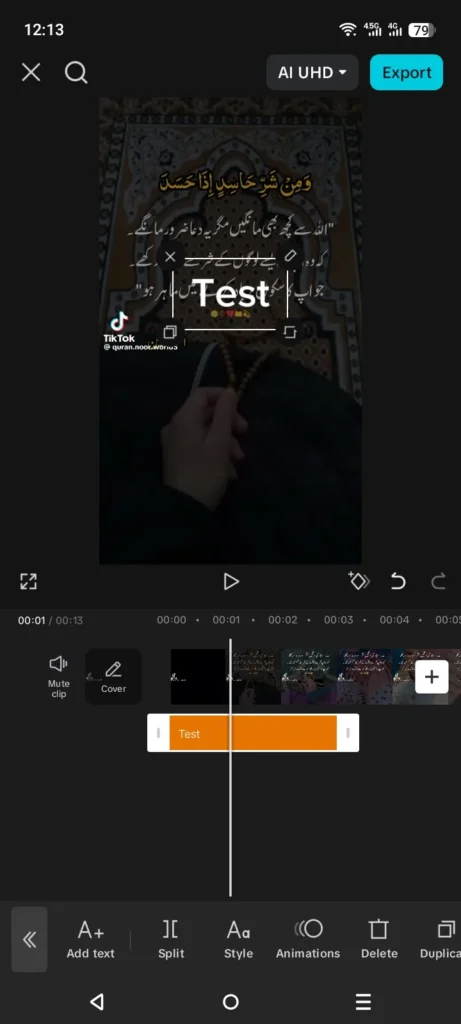
You can track:
- Text
- Stickers
- Overlays
- Emojis
- Images
- Shapes
Select the layer first.
Step 2: Open Motion Tracking
PC:
- Click the layer
- Go to Motion Tracking (right sidebar)
Mobile:
- Tap the layer
- Scroll bottom tools
- Tap Tracking

Step 3: Place the Tracking Point Correctly
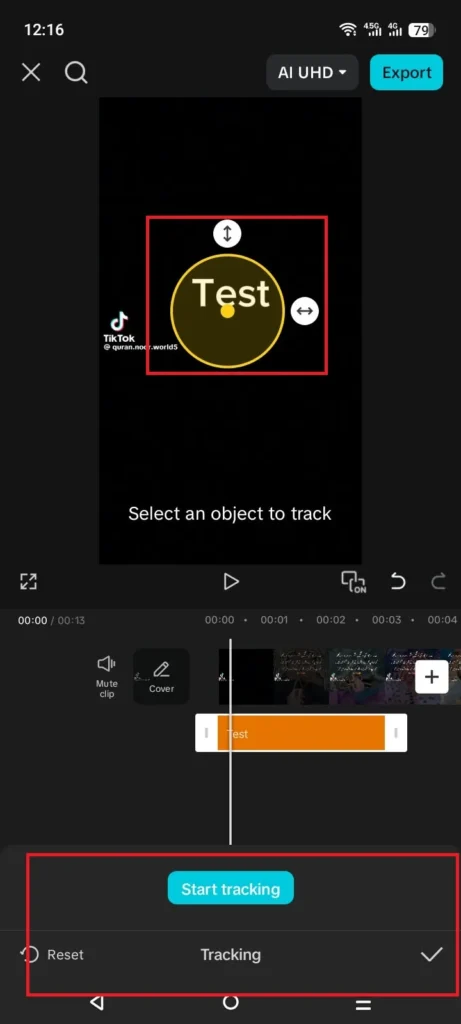
This is the most important step.
Place the tracking point on:
✔ High contrast area
✔ Stable object part
✔ Something visible in all frames
✔ The center of your target subject
Do NOT place it on:
✘ Edges
✘ Empty spaces
✘ Dark shadows
✘ Fast-moving areas
✘ Low-detail parts (plain clothing, sky, walls)
Step 4: Tap “Start Tracking”
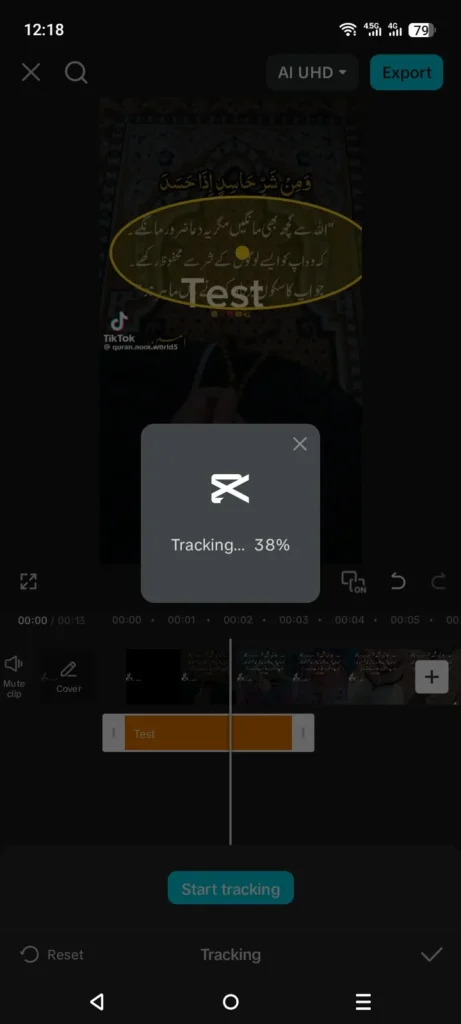
CapCut will analyze the video frame-by-frame.
🟦 CapCut Motion Tracking Not Working (Fixes)
Below are the complete, real working solutions for every major tracking problem.
1. Improve footage quality before tracking. If your source is under 1080p, dark, or low-contrast: shoot in 1080p/4K where possible, increase brightness and contrast, and sharpen the clip (Adjust → Sharpen, moderate setting) before running tracking. This resolves the single most common cause.
2. Track in shorter segments. If tracking drifts or loses the subject partway through, split the clip into 2-5 sections and track each separately, then merge. This avoids compounding drift over a long clip.
3. Slow the clip down before tracking, then restore speed after. Reduce clip speed (0.5x-0.3x), run tracking, then set the speed back to normal. Slower motion between frames gives the tracking algorithm more to work with — this genuinely helps with fast subject movement, though results vary by footage rather than being a fixed percentage improvement.
4. Trim or split around frames where the subject leaves the frame entirely. The tracker resets when the subject disappears — working only with the visible segments avoids this reset.
5. If tracking is stuck at 0% or frozen, clear cache first. Settings → Clear Cache, then restart CapCut (mobile: Settings → App → CapCut → Storage → Clear Cache). This resolves cases where corrupted cached AI model data is blocking processing.

6. Update CapCut. Tracking-specific bugs are common enough across versions that this is worth ruling out before deeper troubleshooting.
7. On PC, try disabling hardware acceleration if tracking freezes specifically (Settings → Performance → turn off both Hardware Acceleration options, restart). GPU conflicts are a known cause of tracking freezes on desktop specifically.
8. On low-end phones, free up resources before tracking: close background apps, restart the phone, enable Performance Mode if available, and avoid tracking long 4K clips directly — track a downscaled/proxy version if needed.
9. Avoid tracking zoomed or cropped footage. Zooming reduces the visual detail available to the tracker — track the original unzoomed clip instead.
10. If a specific body part isn’t tracking well, try a different anchor point — shoulder, face, chest, or a distinct pattern on clothing instead of a hand or a moving edge.
🟦 Motion Tracking on CapCut PC vs Phone — Which Is Better?
Phone:
- Faster AI tracking
- Better detection for faces
- Smoother experience
PC:
- More control over placement
- Better for long clips
- Sometimes buggy if GPU conflicts
Recommendation:
Use phone for tracking, then send project to PC for final editing.
🟩 Advanced Tricks for Perfect Motion Tracking
✔ Add a border around the object
Increasing contrast helps AI lock onto movement.
✔ Use stabilization before tracking
Smooth videos = smooth tracking.
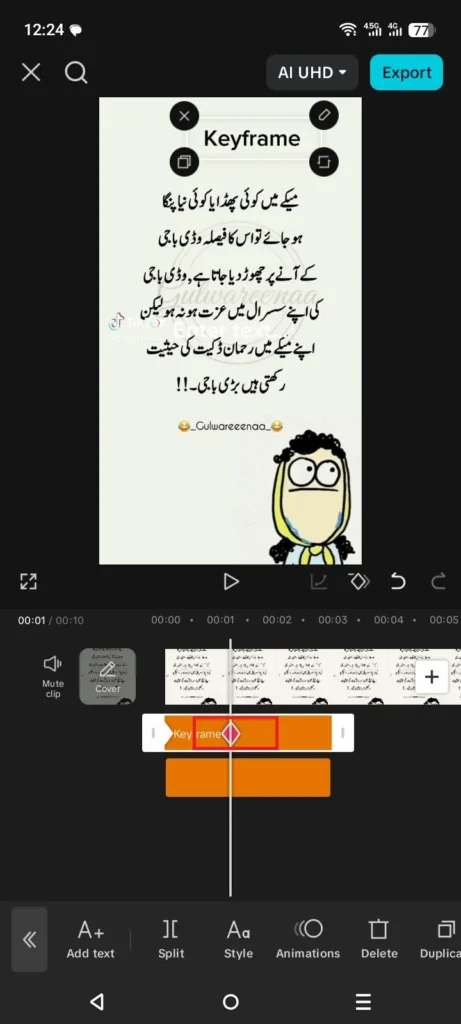
✔ Use keyframes if tracking breaks
For complex movement, manual keyframes fix everything.
✔ Duplicate the item + track separately
Useful for long clips.
🟪 When Motion Tracking Should NOT Be Used
Motion tracking performs poorly when:
- Subject moves too fast
- Camera shakes heavily
- Subject leaves frame
- Background and subject have same color
- Video is below 720p
In these cases, use keyframes instead.
🟩 Export Issues After Motion Tracking
Sometimes tracking works, but exported video breaks.
Fix:
- Export in 1080p 30FPS
- Avoid HEVC (H.265)
- Disable hardware acceleration
- Remove heavy effects overlapping tracking layer
🟢 Conclusion
Motion tracking in CapCut is powerful but requires:
✔ Good footage
✔ Correct tracking point
✔ Enough device performance
✔ Updated app
✔ Clean cache
Using the steps above, you can fix:
- Motion tracking not working
- Tracking inaccurate
- Tracking stuck at 0%
- Object not following
- Tracking jumps around
- Tracking only works on phone, not PC
This guide ensures perfect, smooth, stable motion tracking every time.


