
🎬 Make CapCut Edits Look Like After Effects (2026)
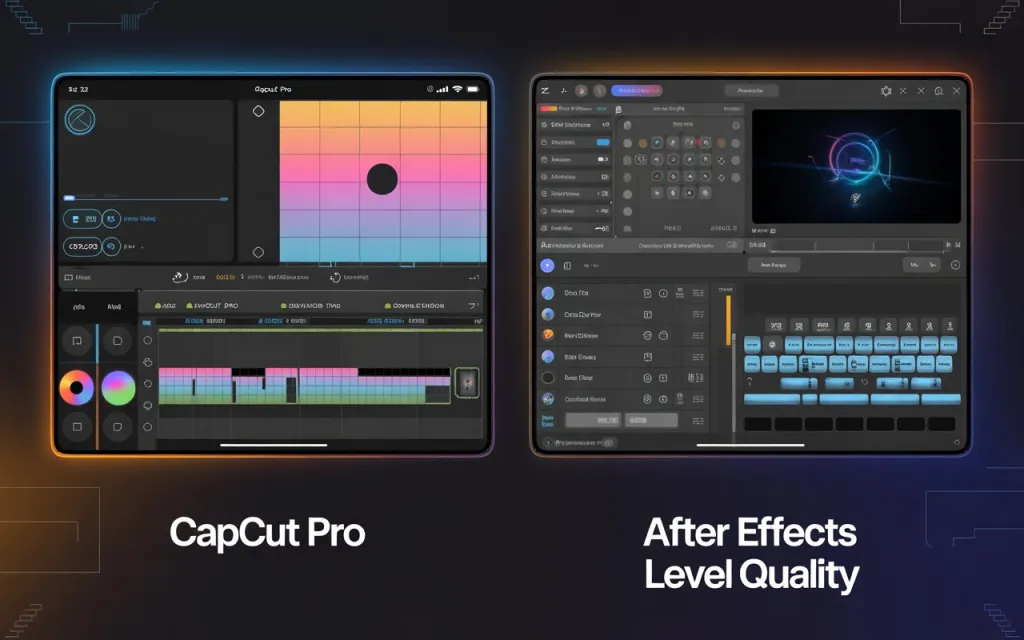
apCut has become the go-to app for mobile editors — but did you know you can make your CapCut PRO edits look just like After Effects without ever opening a PC?
Whether you’re creating cinematic transitions, motion graphics, or stylized reels, this guide will show you the exact techniques, presets, and AI tools that make your videos look like they were built in Adobe After Effects.
💡 Why Make CapCut Look Like After Effects?
After Effects is known for:
- Complex transitions
- Advanced motion tracking
- Professional color grading
- Dynamic text animations
While CapCut is a simpler app, the PRO version (or even the free version with creative use) can replicate 90% of that magic through built-in effects, AI tools, and smart layering.
🧩 1. Master Keyframes and Easing (The After Effects Foundation)
The keyframe tool in CapCut works just like it does in After Effects.
How to Use:
- Select a clip → tap Edit → Keyframe (diamond icon).
- Add keyframes at points where you want motion (e.g., zoom, rotation, or position changes).
- Use Ease In / Ease Out under animation settings to create natural motion.
🎯 Pro Tip: Combine rotation + zoom + slight position shift for that smooth “camera movement” effect After Effects editors love.
🎨 2. Use Motion Blur and Graph Animation
After Effects users rely on Graph Editor to smooth out animations. In CapCut, you can simulate this by:
- Enabling Motion Blur (under Effects → Basic → Motion Blur).
- Adjusting animation curves with the “Custom Animation” tool.
This adds realism and reduces the “robotic” feel of movements.
⚡ 3. Add Glow and Light Flicker Effects
After Effects has “Glow,” “Light Rays,” and “Lens Flare” effects.
CapCut’s PRO version offers similar effects in:
📍 Effects → Lens / Shadow → Glow, Rays, or Flicker Light
You can layer multiple effects:
- One soft white glow for highlight enhancement.
- One colored flicker synced with the music beat for a dynamic pop.
💡 Expert Tip: Blend modes like Overlay and Screen can be used (in CapCut PC version) to merge lighting layers smoothly. For more CapCut effects to level up your videos, see our pro-level effects roundup.
🎚️ 4. Create Professional Color Grading (LUTs + Manual Adjust)
After Effects editors often rely on LUTs (Look-Up Tables) for cinematic color tones.
In CapCut:
- Go to Adjust → Filters or Color.
- Use Cinematic, Warm, or Moody LUTs.
- Fine-tune manually:
- Brightness: +10 to +15
- Contrast: +20
- Saturation: -5 (for filmic look)
- Highlights/Shadows: Balance to taste
🎥 You can also import custom LUTs (from Color Grading sites or CapCut templates). If you’re into dreamy aesthetic edits, this hopecore editing guide walks you through the full vibe.
✨ 5. Use Camera Shake and Directional Blur
For realistic movement, combine:
- Camera Shake Effect (under Basic) – adds handheld feel.
- Directional Blur – simulates motion speed.
- Zoom In/Out animations – to match music transitions.
This combo instantly gives your edits an “After Effects trailer” look.
🔠 6. Pro Text Animations and Motion Typography
CapCut PRO offers text keyframes, masking, and glow — perfect for kinetic typography.
Steps:
- Tap Text → Add Text → Animation.
- Select Typewriter, Wipe, or Swing animations.
- Adjust speed and easing to sync with beats.
- Add shadow + stroke + glow for a 3D-layered look.
You can also mask text behind subjects, mimicking After Effects compositing.
🧠 7. AI Tools to Automate Complex Edits
CapCut’s AI Auto Reframe and AI Motion Tracking make it possible to replicate After Effects’ tracking and scaling effects:
- AI Auto Reframe: Keeps subjects centered automatically.
- AI Motion Tracker: Allows attaching stickers or text to moving objects.
- AI Background Remover: Helps isolate subjects for cinematic focus.
Combine these with depth-of-field blur to create a parallax camera feel.
🎧 8. Sync Visuals with Music Beats (Like AE Expressions)
After Effects users often use “expressions” to sync effects to sound.
In CapCut:
- Add your music.
- Tap Beat Detection (AI).
- Align effects, keyframes, and zooms to beat markers.
This gives your video a rhythmic, pro motion similar to AE’s auto expressions.
🪄 9. Add Transitions Like After Effects Packs
CapCut templates and PRO transitions can recreate AE transitions such as:
- Zoom Warp
- Spin Blur
- Glitch Slide
- Light Flash Cut
Find them under Effects → Transition → Camera / Flash / Glitch. Templates are also the fastest way to hop on trending edits — like the epic trollface edit.
📲 10. Export Like a Pro (No Quality Loss)
- Tap Export → 1080p / 4K
- Set 60 FPS for smooth playback.
- Enable Bitrate: High or Ultra.
- Optional: Turn on HDR Export for vivid color.
🎬 Pro Export Settings:
- 4K @ 60FPS
- Bitrate: 12–16 Mbps
- Format: MP4 (H.264)
📚 Bonus: CapCut Desktop for AE-Like Workflow
If you’re editing on CapCut Desktop (Windows/Mac), you get:
- Multi-track timeline
- Masking tools
- Blend modes
- Direct LUT import
These features bring CapCut even closer to After Effects functionality.
🧩 Final Thoughts
You don’t need a high-end PC or Adobe subscription to make cinematic edits.
With CapCut’s PRO tools, AI features, and creative use of keyframes, you can easily replicate the polished, motion-rich visuals of After Effects right from your mobile device.
🎥 Your creativity + CapCut PRO = After Effects-Level Masterpieces.

apCut has become the go-to app for mobile editors — but did you know you can make your CapCut PRO edits look just like After Effects without ever opening a PC?
Whether you’re creating cinematic transitions, motion graphics, or stylized reels, this guide will show you the exact techniques, presets, and AI tools that make your videos look like they were built in Adobe After Effects.
apCut has become the go-to app for mobile editors — but did you know you can make your CapCut PRO edits look just like After Effects without ever opening a PC?
Whether you’re creating cinematic transitions, motion graphics, or stylized reels, this guide will show you the exact techniques, presets, and AI tools that make your videos look like they were built in Adobe After Effects.
💡 Why Make CapCut Look Like After Effects?
After Effects is known for:
- Complex transitions
- Advanced motion tracking
- Professional color grading
- Dynamic text animations
While CapCut is a simpler app, the PRO version (or even the free version with creative use) can replicate 90% of that magic through built-in effects, AI tools, and smart layering.
While CapCut is a simpler app, the PRO version (or even the free version with creative use) can replicate 90% of that magic through built-in effects, AI tools, and smart layering.
🧩 1. Master Keyframes and Easing (The After Effects Foundation)
The keyframe tool in CapCut works just like it does in After Effects.
How to Use:
- Select a clip → tap Edit → Keyframe (diamond icon).
- Add keyframes at points where you want motion (e.g., zoom, rotation, or position changes).
- Use Ease In / Ease Out under animation settings to create natural motion.
🎯 Pro Tip: Combine rotation + zoom + slight position shift for that smooth “camera movement” effect After Effects editors love.
🎯 Pro Tip: Combine rotation + zoom + slight position shift for that smooth “camera movement” effect After Effects editors love.
🎨 2. Use Motion Blur and Graph Animation
After Effects users rely on Graph Editor to smooth out animations. In CapCut, you can simulate this by:
After Effects users rely on Graph Editor to smooth out animations. In CapCut, you can simulate this by:
- Enabling Motion Blur (under Effects → Basic → Motion Blur).
- Adjusting animation curves with the “Custom Animation” tool.
This adds realism and reduces the “robotic” feel of movements.
⚡ 3. Add Glow and Light Flicker Effects
After Effects has “Glow,” “Light Rays,” and “Lens Flare” effects.
CapCut’s PRO version offers similar effects in:
After Effects has “Glow,” “Light Rays,” and “Lens Flare” effects.
CapCut’s PRO version offers similar effects in:
📍 Effects → Lens / Shadow → Glow, Rays, or Flicker Light
You can layer multiple effects:
- One soft white glow for highlight enhancement.
- One colored flicker synced with the music beat for a dynamic pop.
💡 Expert Tip: Blend modes like Overlay and Screen can be used (in CapCut PC version) to merge lighting layers smoothly.
💡 Expert Tip: Blend modes like Overlay and Screen can be used (in CapCut PC version) to merge lighting layers smoothly.
🎚️ 4. Create Professional Color Grading (LUTs + Manual Adjust)
After Effects editors often rely on LUTs (Look-Up Tables) for cinematic color tones.
In CapCut:
- Go to Adjust → Filters or Color.
- Use Cinematic, Warm, or Moody LUTs.
- Fine-tune manually:
- Brightness: +10 to +15
- Contrast: +20
- Saturation: -5 (for filmic look)
- Highlights/Shadows: Balance to taste
🎥 You can also import custom LUTs (from Color Grading sites or CapCut templates).
✨ 5. Use Camera Shake and Directional Blur
For realistic movement, combine:
- Camera Shake Effect (under Basic) – adds handheld feel.
- Directional Blur – simulates motion speed.
- Zoom In/Out animations – to match music transitions.
This combo instantly gives your edits an “After Effects trailer” look.
🔠 6. Pro Text Animations and Motion Typography
CapCut PRO offers text keyframes, masking, and glow — perfect for kinetic typography.
CapCut PRO offers text keyframes, masking, and glow — perfect for kinetic typography.
Steps:
- Tap Text → Add Text → Animation.
- Select Typewriter, Wipe, or Swing animations.
- Adjust speed and easing to sync with beats.
- Add shadow + stroke + glow for a 3D-layered look.
You can also mask text behind subjects, mimicking After Effects compositing.
🧠 7. AI Tools to Automate Complex Edits
CapCut’s AI Auto Reframe and AI Motion Tracking make it possible to replicate After Effects’ tracking and scaling effects:
CapCut’s AI Auto Reframe and AI Motion Tracking make it possible to replicate After Effects’ tracking and scaling effects:
- AI Auto Reframe: Keeps subjects centered automatically.
- AI Motion Tracker: Allows attaching stickers or text to moving objects.
- AI Background Remover: Helps isolate subjects for cinematic focus.
Combine these with depth-of-field blur to create a parallax camera feel.
🎧 8. Sync Visuals with Music Beats (Like AE Expressions)
After Effects users often use “expressions” to sync effects to sound.
In CapCut:
- Add your music.
- Tap Beat Detection (AI).
- Align effects, keyframes, and zooms to beat markers.
This gives your video a rhythmic, pro motion similar to AE’s auto expressions.
🪄 9. Add Transitions Like After Effects Packs
CapCut templates and PRO transitions can recreate AE transitions such as:
- Zoom Warp
- Spin Blur
- Glitch Slide
- Light Flash Cut
Find them under Effects → Transition → Camera / Flash / Glitch.
📲 10. Export Like a Pro (No Quality Loss)
- Tap Export → 1080p / 4K
- Set 60 FPS for smooth playback.
- Optional: Turn on HDR Export for vivid color.
🎬 Pro Export Settings:
- 4K @ 60FPS
- Bitrate: 12–16 Mbps
- Format: MP4 (H.264)
📚 Bonus: CapCut Desktop for AE-Like Workflow
If you’re editing on CapCut Desktop (Windows/Mac), you get:
If you’re editing on CapCut Desktop (Windows/Mac), you get:
- Multi-track timeline
- Masking tools
- Blend modes
- Direct LUT import
These features bring CapCut even closer to After Effects functionality.
🧩 Final Thoughts
You don’t need a high-end PC or Adobe subscription to make cinematic edits.
With CapCut’s PRO tools, AI features, and creative use of keyframes, you can easily replicate the polished, motion-rich visuals of After Effects right from your mobile device.
You don’t need a high-end PC or Adobe subscription to make cinematic edits.
With CapCut’s PRO tools, AI features, and creative use of keyframes, you can easily replicate the polished, motion- rich visuals of After Effects right from your mobile device.
🎥 Your creativity + CapCut PRO = After Effects-Level Masterpieces.


