
How to Use the Teleprompter in CapCut 2026
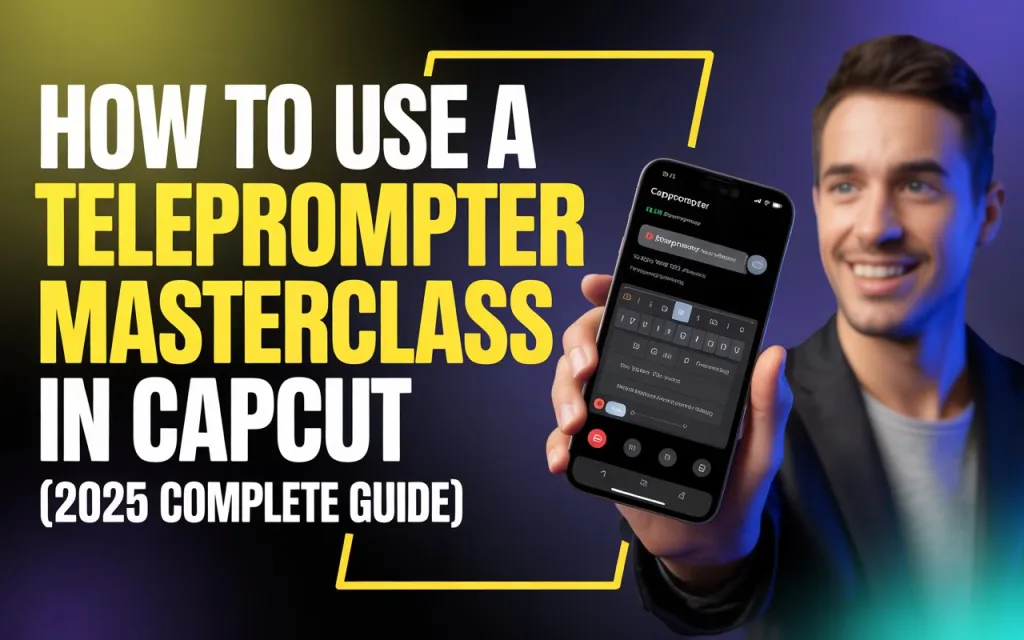
Reading a script naturally while looking straight into the camera is harder than it sounds — CapCut’s built-in Teleprompter handles the mechanics of it, scrolling your script on-screen while you record so you can focus on delivery instead of memorization. This is a mobile-only feature; it isn’t available in CapCut Desktop or CapCut Web.
In this article we will guide you how to use teleprompter in CapCut
What It Does
The Teleprompter displays your written script on-screen while you record, positioned so your eyes stay close to the camera lens for a natural, confident-looking delivery. You can adjust scroll speed, font size, color, and position. It suits tutorials, product demos, app or game promos, and general YouTube/TikTok content — basically anything where you’re speaking directly to camera and want to stay on message without constant retakes.
Why It’s Worth Using
Beyond just not forgetting your lines, it helps with consistent pacing across takes, fewer retakes overall, better eye contact with the camera (and therefore the viewer), and more confidence generally — since you’re not splitting attention between remembering what to say and how to say it.
Step-by-Step Guide
1. Prepare your script. Write it the way you’d actually speak, not the way you’d write an essay — short sentences, plain language, minimal jargon unless it’s necessary. Reading it out loud once before you record is a good way to catch anything that sounds stiff on paper.
2. Set up the teleprompter. Open CapCut, tap All Tools, and select Teleprompter. Type or paste your script in, then use the settings to adjust scroll speed to match your natural speaking rhythm, font size and color for readability, and position — placing the text as close to the camera lens as possible helps you look like you’re speaking to the viewer rather than visibly reading. Do one preview run before you start recording for real.
3. Record. Get your phone at eye level in good lighting, hit record, and let the script scroll. Speak naturally rather than reading in a flat monotone — using natural hand gestures and facial expressions helps sell the delivery. If you stumble, it’s fine to stop and adjust the scroll speed before trying again. Keeping your eyes near the top of the screen, close to the lens, is the single biggest thing that makes the delivery look like genuine eye contact rather than obvious script-reading.
If your device supports it, CapCut also includes an AI eye-contact correction tool that subtly adjusts your gaze toward the camera as you read — worth turning on if it’s available, since it further reduces the “reading” look even with good teleprompter positioning.
4. Edit the recording. Trim out mistakes or dead pauses, add captions (CapCut’s auto-captions work well here for accessibility), apply any filters or effects that fit your content’s tone, and layer in background music at a low volume if it suits the piece.
5. Export and share. Export at 1080p or higher, choosing 9:16 for TikTok/Reels/Shorts or 16:9 for YouTube depending on where it’s headed. Give it a final review before posting.
Tips for a More Natural Delivery
Rehearsing your script once or twice before recording makes a bigger difference than most people expect. Take time to actually dial in the scroll speed until it matches how you naturally talk — a mismatch here is one of the most common reasons a teleprompter read sounds stilted. Short, readable sentences matter more on a small phone screen than they would on paper. Let yourself pause naturally rather than rushing to keep up with the scroll, and a genuinely friendly tone tends to read better on camera than a flat, “presenting” voice. Filming in a quiet, well-lit space also just makes the whole recording easier to work with in the edit.


