
How to Create a Small Ratio Lyrics Reel in CapCut
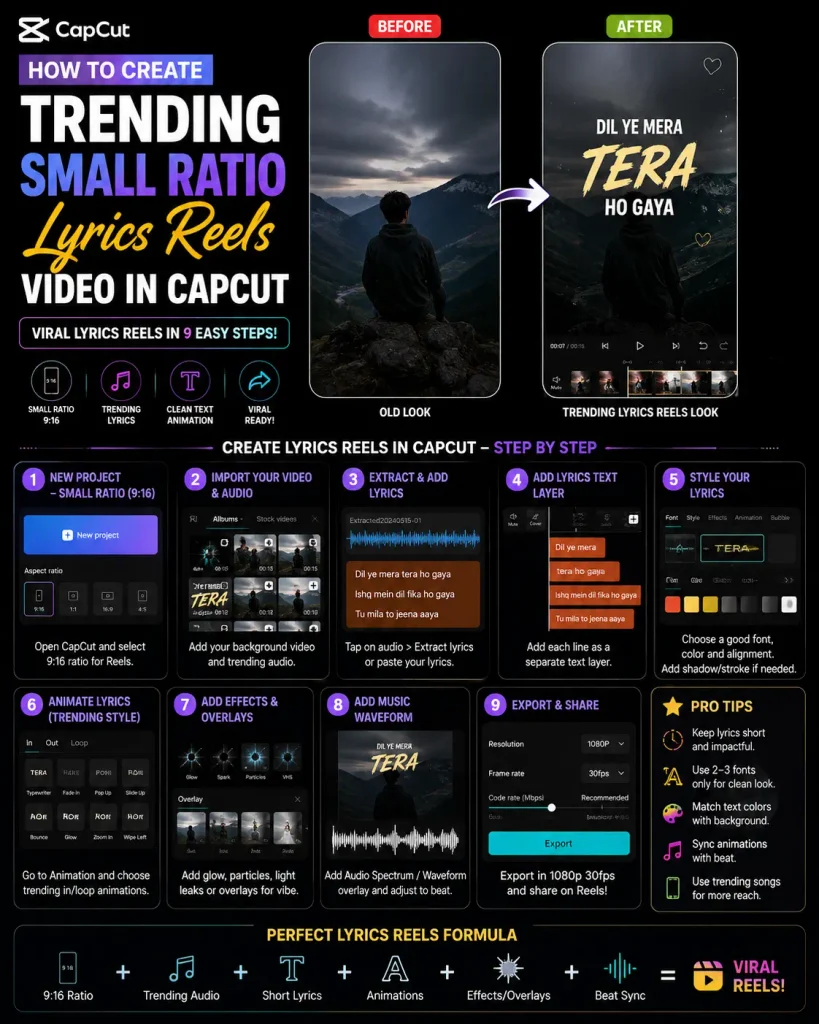
Small ratio” lyric reels — where animated lyric text sits inside a reduced frame (4:5, 1:1, or smaller) rather than filling the full 9:16 screen, often with a blurred or gradient border around it — have become a common trending format on Instagram and TikTok. The reduced frame gives the video a cleaner, more focused look that makes the lyrics themselves the visual centerpiece. Here’s how to create a small ratio lyrics reel in CapCut.
What Makes This Style Different
Rather than a full-frame vertical video, the visible content sits inside a smaller frame — often with a softly blurred or gradient background filling the rest of the screen. Lyrics typically float in the center of that smaller frame while the blurred edges keep focus on the text. It’s a straightforward look to build, and it stands out visually against standard full-frame reels, which is likely part of why it’s caught on.
Step-by-Step Guide
1. Start a new project. Open CapCut, tap New Project, and import your song clip or a background — this can be a simple solid color, a gradient, or a blurred image if you’d rather not use footage. If you’re keeping it minimal (just text and music), a plain white or black background works fine too.
2. Set your aspect ratio. Tap Format in the toolbar and choose your frame — 4:5 (1080×1350) suits Instagram well, or 1:1 (1080×1080) for a square format. If you’d rather build the small-frame-inside-a-full-frame look, work in standard 9:16, pinch-zoom your main clip down to a smaller size, then add a blurred or gradient background beneath it using CapCut’s overlay and background tools.
3. Add your music. Tap Audio and bring in your track from your device or CapCut’s library, trimming it down to your target length — 15 to 30 seconds is typical for this format. If you’re posting publicly, stick to licensed or platform-provided music rather than copyrighted tracks you don’t have rights to use.
4. Add and sync your lyrics. This is the core of the effect. Tap Text → Add Text and type your first line, using a clean, readable font — Montserrat, Poppins, or Anton are worth looking for in CapCut’s font library. Apply an in/out animation (fade, pop, or slide all work) and adjust the timing so each line appears right as it’s sung. Repeat for each lyric line. Turning on beat markers, if available, makes it noticeably easier to land the timing precisely on the music.
5. Build the blurred border, if you’re going for that look. Add your background image or video as an overlay, apply a Gaussian blur (or reduce its opacity) to soften it, then place your lyric layer on top, shrunk down to sit inside that softened frame. This is what creates the signature “smaller frame with a blurred edge” look.
6. Add subtle color grading. A light filter — retro, warm, or a soft fade — paired with modest brightness/contrast/saturation adjustments helps unify the tone. Minimal, clean grading tends to perform better for this format than heavy stylization, since the point is to keep attention on the lyrics.
7. Export. 1080p at 60fps gives the cleanest result. Export and upload directly to Reels or TikTok.
Using a Template Instead
If you’d rather not build this from scratch, CapCut’s template section often has ready-made lyric-reel templates — searching for something like “lyrics edit” or a similar term in the template gallery, then swapping in your own music and text, can get you a finished result in a few minutes rather than building each element manually.
Tips for Better Performance
Using a song that’s already getting traction on the platform tends to matter more than any individual visual choice. Keeping the reel relatively short — somewhere in the 15–20 second range — suits the format’s fast, replayable nature. Posting times genuinely affect reach, but they vary by audience and platform rather than following one universal schedule, so it’s worth checking your own account’s analytics for when your specific followers are active rather than relying on a fixed time window. Engaging with comments after posting also tends to help a video’s early reach.
Mistakes to Avoid
Using copyrighted music without the rights to it risks the video being taken down or muted after posting. Stacking too many effects can end up hiding the lyrics that are supposed to be the focal point. Ornate or cursive fonts tend to be hard to read at the small sizes phone screens display. And it’s worth double-checking your small-ratio frame is actually centered — an off-center frame is a small detail that’s surprisingly noticeable once you’re looking for it.


