🌟 How to Edit HopeCore Videos on CapCut (Step-by-Step Guide)
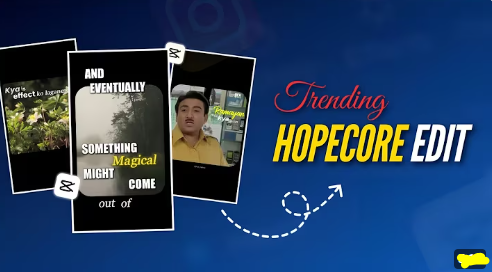
HopeCore videos are a trending aesthetic on TikTok, Instagram Reels, and YouTube Shorts. They focus on uplifting, motivational, and inspirational content, usually with bright visuals, dynamic text, and soft cinematic transitions.
If you want to create your own HopeCore videos in CapCut, this step-by-step guide will help you make professional-looking edits, even as a beginner.
🎬 What Is a HopeCore Edit?
A HopeCore edit typically features:
- Bright, dreamy, or pastel color palettes
- Motivational text overlays (short quotes or phrases)
- Soft cinematic transitions and smooth zooms
- Positive, uplifting background music
- Subtle visual effects like bokeh, lens flares, or light leaks
This style is perfect for motivational clips, short storytelling videos, or aesthetic montages.
🧰 What You’ll Need
Before starting, gather these essentials:
- ✅ CapCut mod apk(latest version on mobile or PC)
- 🎞️ Video clips or images (uplifting or aesthetic visuals)
- 🔠 Fonts for motivational text (e.g., Poppins, Montserrat, or Playfair Display)
- 🎶 Soft or upbeat music track
- 🌈 Optional: Bokeh, lens flare, or pastel overlays
How to Create a CapCut Edit Like AE (Thanos + Woodl Text + Microwave Style)
⚙️ Step-by-Step: How to Edit HopeCore Videos in CapCut
Step 1: Create a New Project
- Open CapCut pro app → Tap “New Project”
- Import your main video clips or images
- Arrange clips on the timeline in the desired order
Step 2: Adjust Colors & Filters
- Tap Adjust → Brightness +20, Contrast +15, Saturation +10
- Apply pastel or dreamy filters to create the HopeCore vibe
- Optional: Add Vignette for soft cinematic focus
Step 3: Add Motivational Text
- Tap Text → Add Text
- Write short quotes or motivational phrases
- Font: Clean, readable, and uplifting (e.g., Poppins, Montserrat)
- Position text for readability (center, bottom, or top corner)
Step 4: Animate Text
- Add In Animations like Fade In, Pop, or Slide Up
- Add Out Animations like Fade Out or Slide Down
- Sync text animations with key moments in your video
Step 5: Add Overlays & Effects
- Tap Overlay → Add Overlay
- Use bokeh lights, lens flare, or pastel textures
- Set blend mode to Screen or Overlay
- Adjust opacity to blend smoothly with your clips
Step 6: Add Music & Sync
- Import your music track → trim to match clip length
- Mark key beats or moments in the audio
- Sync text animations, clip cuts, and overlays to these beats for smooth pacing
Step 7: Add Final Touches
- Apply slow zoom or pan effects for cinematic feel
- Add subtle glow or light leaks for aesthetic enhancement
- Review the video to ensure all text is readable and effects aren’t overpowering
Step 8: Export & Share
- Export settings: 1080p, 30–60fps
- Choose a visually appealing thumbnail
- Share to TikTok, Instagram Reels, or YouTube Shorts
- Suggested hashtags:
#HopeCoreEdit #CapCutTutorial #MotivationalVideo #AestheticReels
💡 Pro Tips for HopeCore Edits
- Use soft, uplifting color palettes (pinks, blues, yellows)
- Keep text short and readable
- Use smooth transitions and subtle effects to avoid clutter
- Preview on a mobile screen to ensure your text and visuals are balanced
🚫 Common Mistakes to Avoid
- Overloading the clip with too many overlays
- Using hard, bright colors that break the HopeCore aesthetic
- Long text phrases that are difficult to read
- Off-beat text animations or mismatched music
🎯 Final Thoughts
HopeCore edits are a beautiful way to inspire and motivate viewers. By combining uplifting visuals, motivational typography, and cinematic transitions in CapCut, you can create videos that stand out on TikTok, Instagram, and YouTube.