
CapCut Export Has a Watermark? Here’s Why and How to Fix It

If your CapCut export has a watermark, it does not necessarily mean that CapCut automatically adds a watermark to every video you export.
According to CapCut’s current Help Center, watermark-free exports are generally possible. When a watermark appears, it can come from a template’s ending clip, a branded element inside the project, certain stock assets, or a Pro feature or template that requires a subscription.
The exact reason depends on what you used in your project.
🧪 Tested October 2026 on CapCut 19.7.0 for Android: I could not reproduce the watermark problem in my test exports, so I can’t claim that deleting the ending clip — or any single step — fixed it. The screenshots below document the actual settings and steps from the test session.
Tested on: CapCut 19.7.0 for Android — 10 Oct 2026.
Why Does CapCut Put a Watermark on My Video?

CapCut identifies several possible sources for a watermark.
The most common one with templates is a short CapCut-branded ending clip that is added to the end of the project. Other template elements can also contain branding.
A watermark can also be associated with certain Pro materials or export options. CapCut’s current documentation says some Pro features and materials can require Pro for watermark-free exporting.
So before assuming that CapCut itself is forcing a watermark onto your entire video, check the project for the specific element or feature responsible.
Check the End of Your Timeline
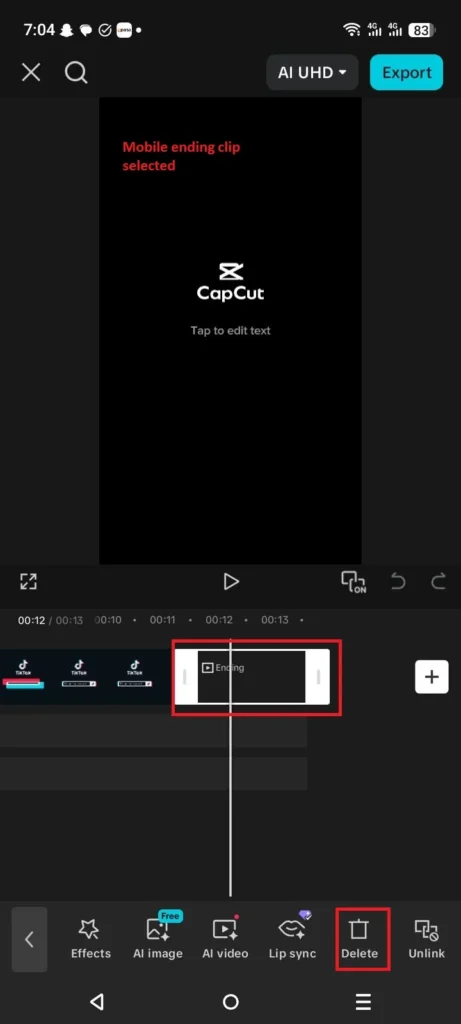
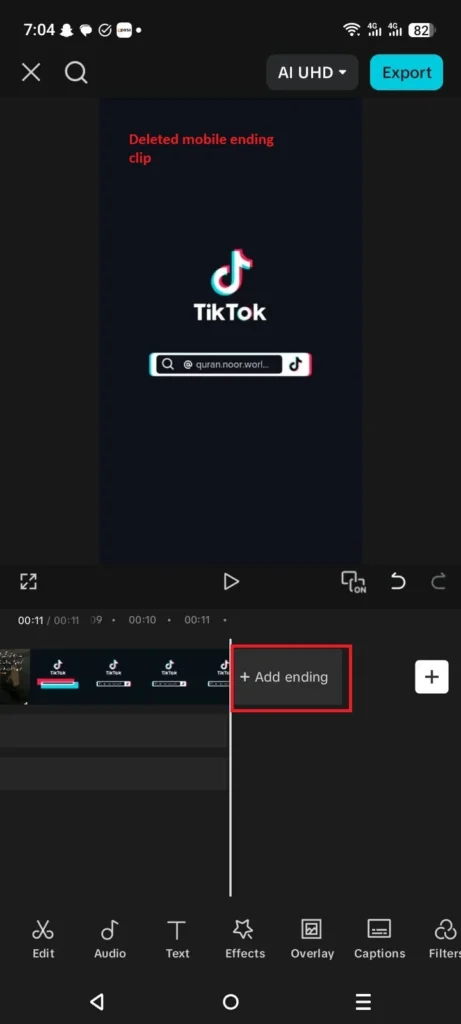
If you used a CapCut template, start by checking the end of the timeline.
CapCut says many templates include a short branded outro containing the CapCut logo. This clip is part of the template rather than a watermark automatically applied to the entire exported video.
To remove it:
- Open your project.
- Move to the end of the timeline.
- Look for the CapCut-branded ending clip.
- Select the clip.
- Delete it.
- Preview the project again.
- Export the video.
CapCut provides these steps for its Web, Desktop, and Mobile versions.
Check for Other Watermark Elements
Deleting the ending clip may not be enough if the watermark is part of another element in the project.
CapCut says some templates can contain logo overlays or other branded elements. Check the timeline for additional layers containing a CapCut logo or other branding.
If you find one, remove it if the project allows you to do so, then preview the video before exporting again.
CapCut Template Watermark
Templates are one of the main situations where users may see a CapCut watermark.
According to CapCut, many templates contain a short branded outro. The logo therefore comes from the template project rather than being automatically added to every video exported from CapCut.
If the watermark is simply the ending CapCut clip, you can remove that clip from the timeline before exporting.
However, some templates or template elements can have different restrictions. If CapCut identifies the template or its materials as requiring Pro, the export requirements can be different.
CapCut Pro Content Can Affect Watermark-Free Export
Another situation occurs when your project contains a Pro feature or material.
CapCut’s current Help Center says certain premium features and materials can require CapCut Pro for watermark-free exporting. This can include Pro templates and other Pro resources.
If CapCut shows a Pro message when you try to export, check which element in your project is marked as Pro.
In this situation, simply deleting the normal CapCut ending clip may not resolve the export restriction.
Check Your Project for Pro Materials

If CapCut asks you to join Pro when you export, look through the project for materials marked as Pro.
CapCut explains that using a premium resource can trigger a Pro prompt during export. The exact behavior can depend on the platform and the material being used.
If the project contains a Pro element that you do not need, replacing it with an available non-Pro alternative may allow you to export without that particular restriction.
What If You Are Not Using a Template?
If you created the project manually and still see a watermark, check the timeline carefully.
CapCut’s documentation says that watermark-free export is possible and recommends checking the project for watermark elements when a watermark unexpectedly appears.
Look through the timeline and layers for:
- A CapCut ending clip
- A logo overlay
- A branded template element
- A stock element containing branding
- A Pro resource that affects export
The source of the watermark matters because the solution depends on which element caused it.
CapCut Watermark on Mobile
On CapCut Mobile, a watermark can come from the ending clip included with a template.
CapCut’s documented process is to open the project, move to the end of the timeline, select the CapCut ending clip, and delete it before exporting.
You should also check the rest of the timeline for other watermark elements before exporting.
CapCut Watermark on PC
The same basic check applies to CapCut Desktop.
Open your project and move to the end of the timeline. If there is a CapCut-branded outro, select it and delete it. CapCut also recommends checking other tracks for hidden overlays or logos.
If CapCut instead shows a Pro requirement during export, check whether your project contains Pro materials or uses an export option that requires Pro.
CapCut Watermark on Web
CapCut Online can also add a branded ending when a template includes one.
Open the project, scroll to the end of the timeline, and check for the CapCut ending clip. CapCut recommends deleting the branded clip and checking for additional logo overlays before exporting.
What If the Watermark Is Still There After Removing the Ending?
If you removed the visible ending clip and checked the project for other watermark elements but the exported video still contains a watermark, CapCut recommends contacting its support team for further assistance.
At that point, it is better to contact CapCut rather than assuming that a particular setting, cache problem, or device issue is responsible.
How to Export a CapCut Video Without a Watermark
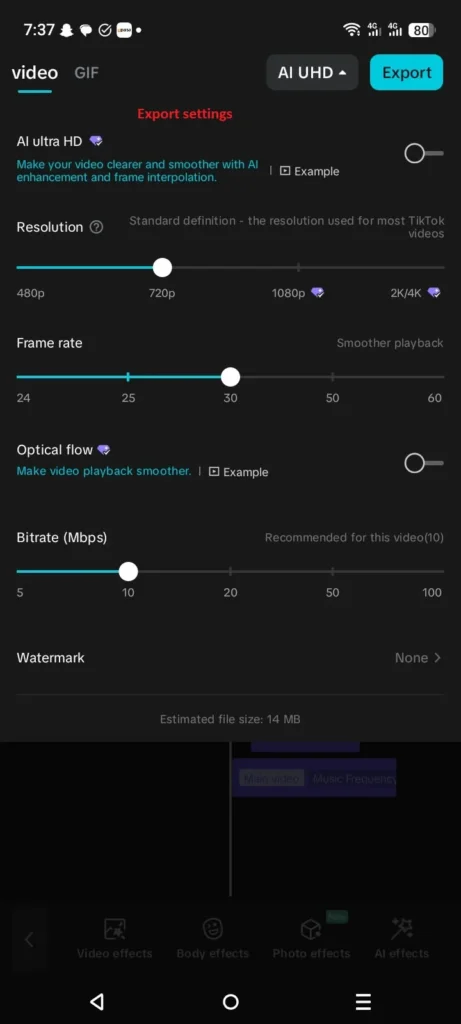
For a normal project, CapCut says watermark-free export is possible.
Before exporting:
- Check the end of the timeline for a CapCut outro.
- Delete the branded ending clip if it is present.
- Check other tracks for logo overlays or branded elements.
- Check whether the project contains Pro materials.
- If CapCut shows a Pro export requirement, identify the Pro element responsible.
- Preview the complete video.
- Export again.
These checks are based on CapCut’s own current guidance.
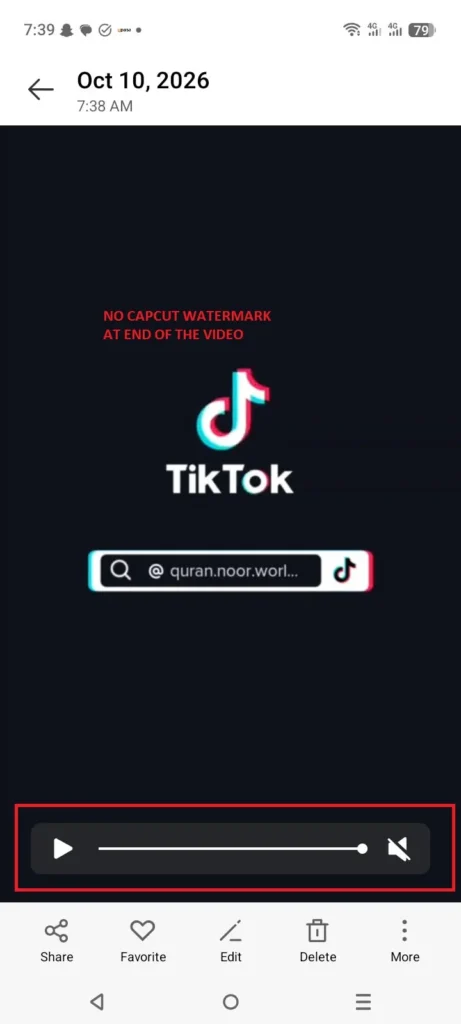
The Bottom Line
If your CapCut export has a watermark, first check the project rather than assuming CapCut automatically watermarks every video.
For template projects, the watermark is often a short CapCut-branded ending clip that can be removed from the timeline. Other template layers or branded assets can also contain a watermark.
If CapCut instead asks you to subscribe to Pro, check whether your project contains a Pro template, effect, or other premium material. Some Pro content requires Pro for watermark-free exporting.
If you have removed the visible watermark elements and the exported video still contains a watermark, CapCut recommends contacting its support team for further help.


