
CapCut Template Only Shows One Photo? Here’s Why and How to Fix It
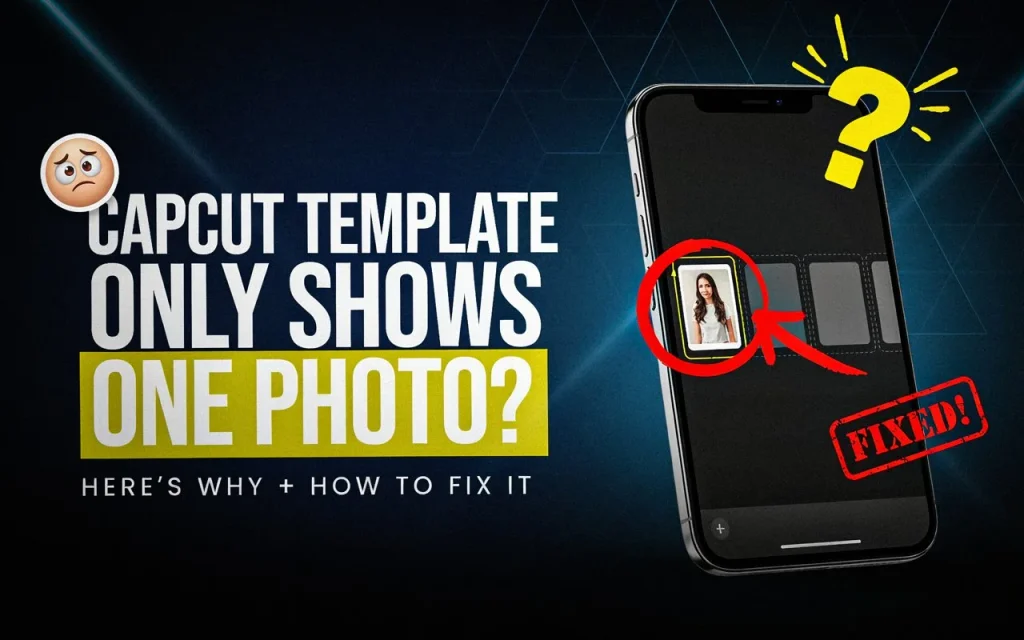
If a CapCut template only shows one photo or one frame on PC, CapCut says this can happen when a project created from a template is opened in the Desktop application.
The issue is specific to CapCut Desktop. CapCut’s current Help Center says it is not observed on Mobile or Web.
Here’s what CapCut says about the issue and what you can do.
Why Does a CapCut Template Only Show One Photo on PC?
According to CapCut, the problem can occur when a project created from a template is opened in the CapCut Desktop application.
Instead of displaying the complete template preview, the Desktop timeline may show a single static image or frame. CapCut describes this as an issue related to how certain template content is handled on PC.
The template may have originally been created or used on CapCut Mobile, where the template’s animations and other visual elements are supported.
This Issue Is Specific to CapCut Desktop
CapCut states that the one-image or one-frame problem occurs on CapCut Desktop for Windows and macOS.
The company says the same issue is not observed on:
- CapCut Mobile
- CapCut Web
So if the template works normally on your phone but only displays one frame after opening the project on your PC, the difference in platform support is important.
Why Does the PC Version Show Only One Frame?
CapCut explains that some template projects can contain visual elements that depend on the mobile template experience.
When the project is synchronized to Desktop, the project structure can be transferred, but some template elements may not be displayed in the same way in the Desktop timeline. This can result in static thumbnails or placeholder frames appearing instead of the complete template preview.
In other words, seeing one image in the PC timeline does not necessarily mean that the original template itself contained only one image.
Missing Media Can Also Affect the Preview
CapCut also notes that a template can contain placeholders for photos or videos that still need to be replaced with your own media.
If required media has not been filled in, the Desktop project can display a default preview or placeholder rather than the expected content.
This is particularly relevant when you have opened a template-based project but have not yet replaced all of its required media.
What About Template Animations and Effects?
CapCut says that some template effects may not display completely in the Desktop timeline.
Its documentation specifically mentions visual elements such as dynamic effects and other template-dependent features that may not render in the same way on PC.
Therefore, the Desktop timeline may not always provide the same visual preview you saw when using the template on Mobile.
Does the One-Frame Problem Affect the Final Video?
CapCut says that the incomplete Desktop preview does not necessarily mean the final exported video will have only one frame.
According to CapCut, the exported video can play correctly when the template project has been properly completed and the required media has been added.
This distinction is important: the appearance of the project inside the Desktop timeline and the final exported result are not necessarily the same thing.

How to Fix a CapCut Template That Only Shows One Photo
CapCut’s documentation does not describe this as a normal problem with your individual photo. Instead, it connects the issue to how template projects are handled on Desktop.
The most appropriate approach is therefore to use the platform where the template is fully supported.
1. Complete the Template on Mobile
CapCut recommends completing template-based editing on the Mobile app when dealing with templates that depend on the mobile template experience.
Open the template in CapCut Mobile and add the photos or videos requested by the template.
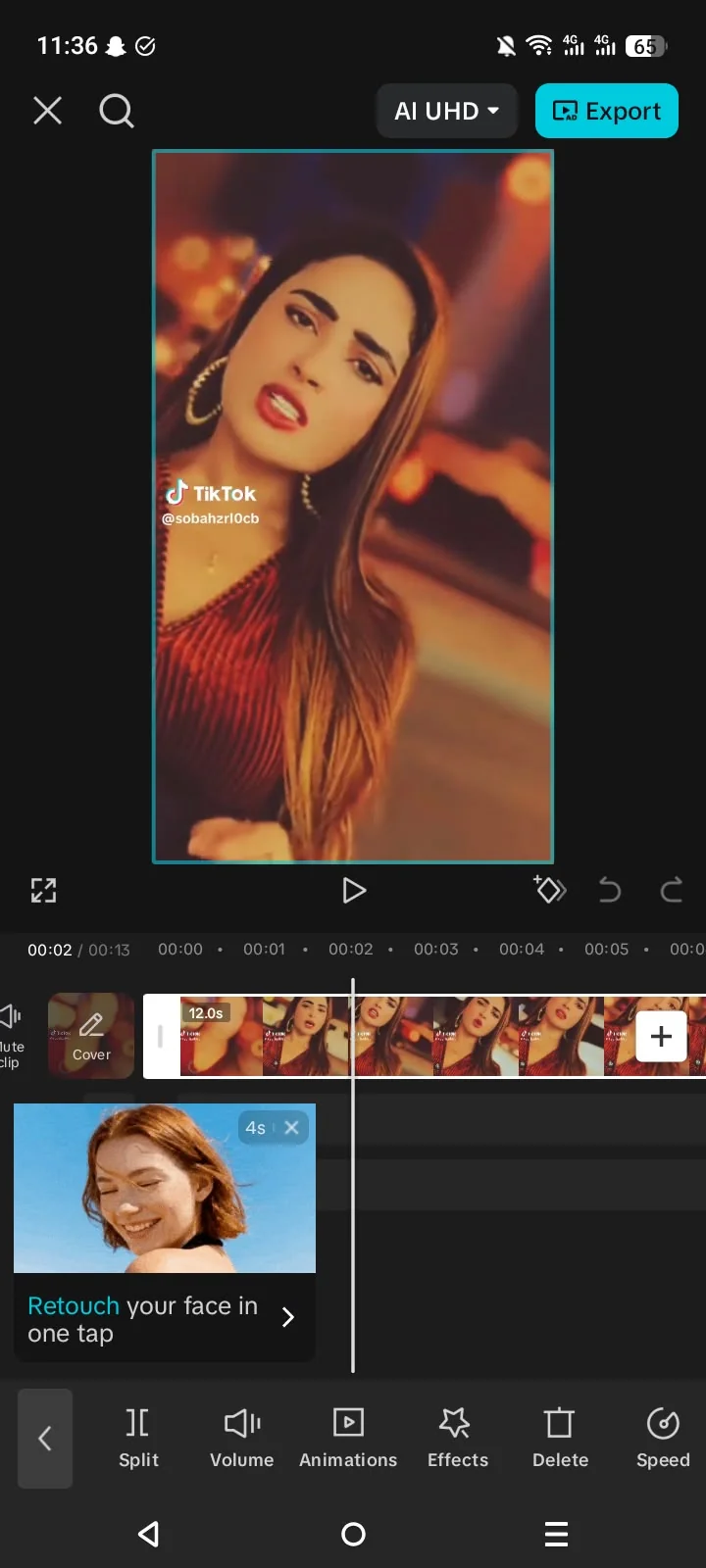
2. Make Sure the Required Media Is Added
If the template contains multiple placeholders, replace the required placeholders with your own photos or videos.
CapCut notes that unfilled placeholders can result in default or incomplete previews on Desktop.
3. Use Desktop Only When Appropriate
If you need to use the PC version after creating the template video, CapCut’s guidance indicates that Desktop can be used after the template-based editing process.
However, CapCut recommends completing complex template editing on Mobile rather than relying on Desktop for every template element.
What If the Template Works Normally on Mobile?
That is consistent with CapCut’s current documentation.
CapCut says the one-image/frame issue is specific to Desktop and does not occur on Mobile.
So if the same template displays correctly on your phone, there is no reason to assume that the template itself is broken simply because its PC preview looks incomplete.
What If the Template Works on Web?
CapCut also states that the one-frame issue does not occur on its Web version.
However, CapCut’s template functionality differs between platforms, so the availability of a particular template can still vary.
The important point for this specific problem is that CapCut identifies Desktop as the affected platform.
CapCut Template Only Shows One Photo: What You Should Do
If a downloaded CapCut template shows only one photo or frame on PC:
- Check whether you are using CapCut Desktop.
- Confirm that the project came from a template.
- Make sure all required photos or videos have been added.
- If the template relies heavily on mobile template features, complete the editing on CapCut Mobile.
- Do not assume that the single frame in the Desktop timeline means the exported video will contain only one frame. CapCut says the final export can still work correctly when the project is properly completed.
Why Using Mobile Can Be Better for This Type of Template
CapCut’s documentation explains that Mobile has the more complete template experience, while Desktop has limitations with certain template-based projects.
This is particularly relevant for templates containing animations, transitions, placeholders, and other elements that depend on the template system.
If the template looks correct on your phone but incomplete on your PC, using Mobile for the template editing process is the approach supported by CapCut’s own guidance.
The Bottom Line
If a CapCut template only shows one photo or frame on PC, CapCut identifies this as a Desktop-specific issue related to how certain template projects and their visual elements are handled.
The same issue is not expected on CapCut Mobile or Web.
If you encounter it, make sure the template’s required media has been added and consider completing the template editing on CapCut Mobile. The single-frame appearance in the Desktop timeline does not automatically mean that your final exported video will contain only one frame.
For complex templates, following CapCut’s recommended Mobile workflow is the safest option when the Desktop preview does not display the template correctly.
Tested On
Tested on CapCut 19.7.0 for Android and CapCut Desktop 9.5.0 for Windows — 11 Oct 2026. During testing, the single-frame issue described above did not reproduce: the template displayed different frames on both PC and mobile, and the exported mobile video played correctly. The fix steps in this article reflect CapCut’s official documentation; no fix was verified hands-on because the problem did not occur in testing.


