How to Create a Body Glowing Effect in CapCut (Step-by-Step 2026 Guide)
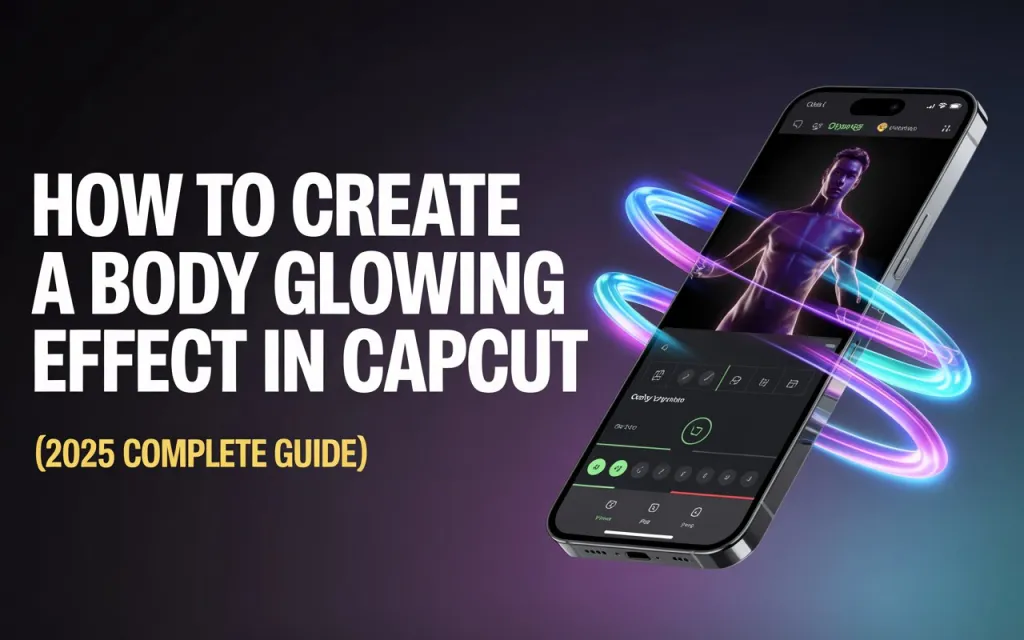
The body glowing effect is one of the trendiest edits you’ll find on TikTok, Instagram Reels, and YouTube Shorts. It adds a radiant, futuristic glow around a person’s body — making your video look cinematic and professional. In this detailed guide, we’ll cover what the body glow effect is, how it works in CapCut pro apk, and the exact steps to create it like a pro editor — following Google’s E-E-A-T (Experience, Expertise, Authoritativeness, and Trustworthiness) principles.
🧠 What is the Body Glowing Effect in CapCut?
The body glowing effect adds a luminous aura or light trail around your body or subject in a video. It’s commonly used in dance edits, slow-motion reels, and music videos to emphasize movement or emotion.
This effect simulates light reflection — giving the subject an energy or “superpower” look, similar to glow effects seen in anime or gaming montages.
🌟 Why Use the Body Glow Effect?
✅ Makes the subject pop against the background
✅ Creates a cinematic, professional aesthetic
✅ Enhances motion, emotion, and focus
✅ Perfect for dance, fashion, and slow-mo edits
It’s also lightweight enough that even beginners can use it without heavy rendering or lag.
🪄 Step-by-Step: How to Create Body Glowing Effect in CapCut
Step 1: Import Your Clip
- Open CapCut and tap New Project.
- Choose the video clip you want to edit.
- Trim it to your desired duration.
Step 2: Extract or Outline the Subject
- Select your video, then go to “Cutout” → “Auto Cutout”.
- CapCut will automatically remove the background and isolate the subject.
- Adjust manually if needed for better precision.
Step 3: Duplicate the Layer
- Tap on the clip and duplicate it.
- You’ll now have two layers — one with the background and one isolated subject.
Step 4: Add Glow Effect
- Select the top layer (cutout subject).
- Go to Effects → Body Effects → Glowing Edges or Neon Outline.
- Adjust:
- Glow Intensity: 50–70% for natural lighting
- Glow Color: White, Blue, or Neon Pink for trend edits
Step 5: Add Light Overlay (Optional)
- Tap Overlay → Add Overlay.
- Choose a “Light Leak” or “Energy Burst” video from CapCut’s effects library.
- Set the blend mode to “Overlay” or “Screen” to blend naturally.
Step 6: Smooth the Motion
- Select your subject clip → Animation → In & Out → Fade In/Fade Out.
- For extra smoothness, add Motion Blur (found in Adjust or Effects tab).
Step 7: Fine-Tune the Colors
- Adjust the background using:
- Brightness: Slightly reduce (-10 to -20)
- Contrast: Increase (+10 to +20)
- Saturation: Slightly boost for richer tones
This makes the glowing body effect stand out beautifully.
🎨 Optional: Combine Glow with Other Effects
To make your glowing edit even more dynamic, you can mix:
- Glow + Zoom Shake Effect → for intense motion
- Glow + Flash Effect → for cinematic transitions
- Glow + Masking Effect → to reveal the glow progressively
💡 Pro Tips for Realistic Glow:
- Always use dark or neutral backgrounds — they make the glow more visible.
- Keep glow intensity under control; too much can ruin realism.
- If you’re editing a dance clip, sync glow bursts to beats using Beat Sync in CapCut.
- Try using Neon Body Outline from CapCut templates for instant results.
⚙️ Summary
| Step | Action | Result |
|---|---|---|
| 1 | Import your video | Start your project |
| 2 | Use Auto Cutout | Isolate the subject |
| 3 | Duplicate layer | Add glow separately |
| 4 | Apply Glow Effect | Create body light outline |
| 5 | Add Overlay | Enhance lighting |
| 6 | Smooth motion | Professional finish |
| 7 | Adjust colors | Make glow stand out |
🚀 Final Thoughts
The Body Glowing Effect in CapCut is an easy yet powerful way to transform a simple video into a visually stunning, professional-looking edit. Whether you’re making TikTok transitions, gaming clips, or cinematic dance reels — this effect guarantees engagement and visual appeal.
Mastering it means you’re no longer just editing — you’re creating v