
CapCut Templates Not Showing on PC? Here’s Why
If CapCut Templates are not showing on PC, the problem may be related to how template features are currently supported on the desktop version. CapCut’s own Help Center indicates that template availability and functionality can differ between Desktop, Mobile, and Web.
Some CapCut help pages describe a Templates section on PC, while another official troubleshooting page says that template search is not available on Desktop and that only a limited set of built-in templates may appear. Because of this difference, what you see can
depend on the version of CapCut Desktop you are using.
🧪 Tested October 2026 on CapCut Desktop 9.5.0 (signed in): updating and signing in did not restore template loading on my PC — several templates still show “Couldn’t open this template,” as the screenshots below show.
Tested on: CapCut Desktop 9.5.0 and CapCut 19.7.0 for Android — 9 Oct 2026.
Why Are CapCut Templates Not Showing on PC?
CapCut lists several reasons why templates may not appear, including:
- Regional availability
- An outdated version of CapCut
- Not being signed in
- Internet connection problems
- Looking in the wrong section
- Differences between platform versions
CapCut also states that some desktop versions have more limited template support than Mobile.
So if you can see a particular template on your phone but cannot find it on your PC, it does not necessarily mean there is something wrong with your CapCut installation.
CapCut Desktop Has More Limited Template Support
CapCut does not provide identical template functionality on every platform.
Its documentation says that Mobile has the fullest template experience, while Desktop has more limited support. In particular, CapCut states that some templates available on Mobile may not be available on PC.
This is important when trying to find a template that you saw in a TikTok video or on another user’s phone.
A template being available on Mobile does not automatically mean that the same template will appear in the Desktop application.
Check the Templates Section on CapCut PC
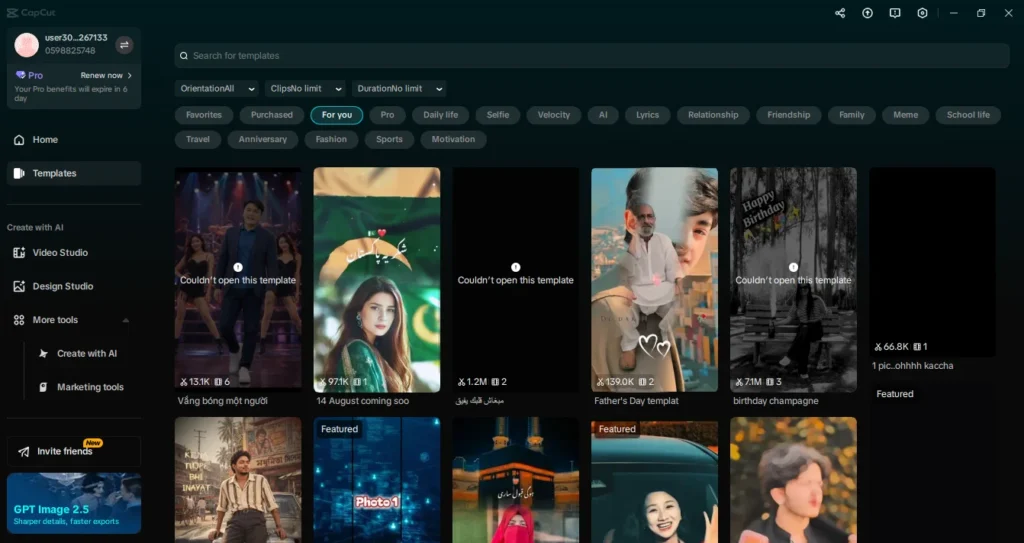
If your version of CapCut Desktop includes a Templates section, check the home screen or project creation area rather than looking inside the normal editing timeline.
CapCut’s current documentation describes a Templates tab on some PC versions, where users can browse available templates.
However, CapCut also says that Desktop may only provide a limited selection of templates compared with Mobile.
Therefore, the absence of a particular mobile template does not necessarily indicate an error.
Update CapCut Desktop
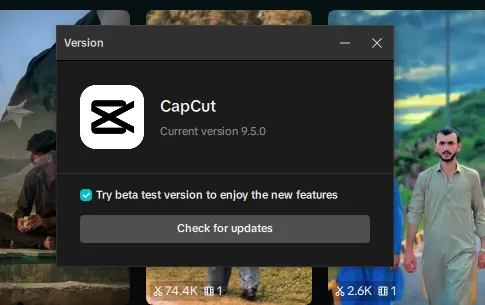
CapCut lists an outdated application or software version as one possible reason templates may not display correctly.
If you are using an older version of CapCut Desktop, update it and then check the Templates section again.
This is particularly relevant when a template or template-related feature was introduced after the version installed on your computer.
Sign In to Your CapCut Account
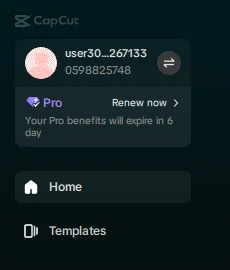
CapCut also identifies being signed out as a possible reason for some templates not appearing.
Make sure you are signed in to your CapCut account and then check the available templates again. CapCut notes that certain templates require an account before they can be accessed.
Check Your Internet Connection
Templates may need to be loaded from CapCut’s servers.
CapCut therefore recommends checking your internet connection when templates are missing or fail to load. A weak or unstable connection can prevent template information from appearing correctly.
If other parts of CapCut are working normally but templates are not loading, checking the connection is one of the official troubleshooting steps provided by CapCut.
Templates Can Differ by Region
Another possibility is regional availability.
CapCut states that some templates are limited by region. As a result, a template that another person can access may not necessarily be available in your location.
This can explain situations where:
- A template appears on another user’s phone.
- You cannot find the same template on your PC.
- Searching for a particular template produces different results.
Regional availability is therefore something to consider before assuming that the PC application is broken.
What If the Template Is From TikTok?
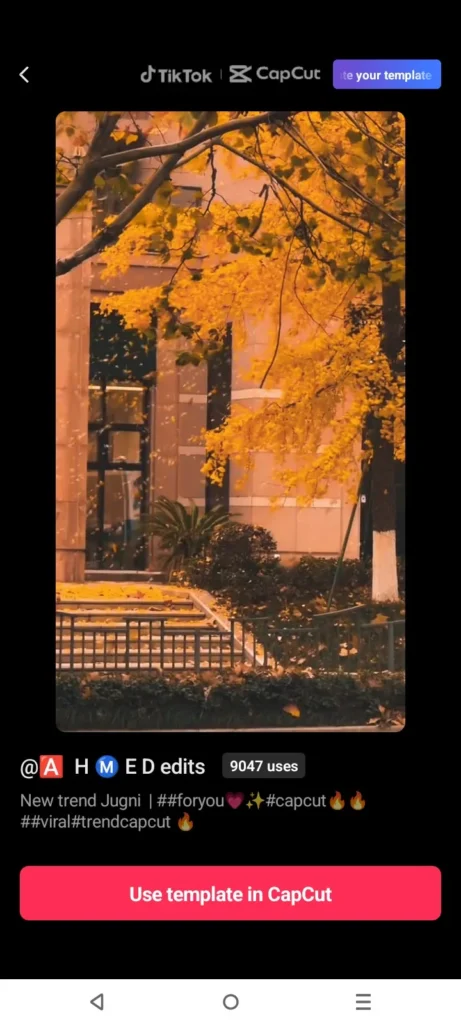
This is where the difference between Mobile and PC becomes particularly important.
CapCut’s documentation says that the full template ecosystem is centered on the mobile app, including template links shared through TikTok. Desktop does not provide all of the same template discovery and sharing functionality.
If you found a template through a TikTok video and cannot find it on your computer, try opening the template through the CapCut mobile app.
CapCut specifically documents the TikTok-to-CapCut template workflow for Mobile.
What If You Can See Templates but Cannot Open One?
Not showing templates and failing to open a particular template are slightly different problems.
CapCut has a separate troubleshooting page for templates that cannot be opened on PC. It lists several possible reasons, including:
- The template may not be supported on PC.
- Your CapCut version may be outdated.
- The template may have regional or account restrictions.
- The template may require an internet connection to download.
- The template may require specific media.
If the template appears but produces an error when you try to open it, those checks are more relevant than simply looking for the Templates section.
Try the Mobile App for Templates That Are Missing on PC
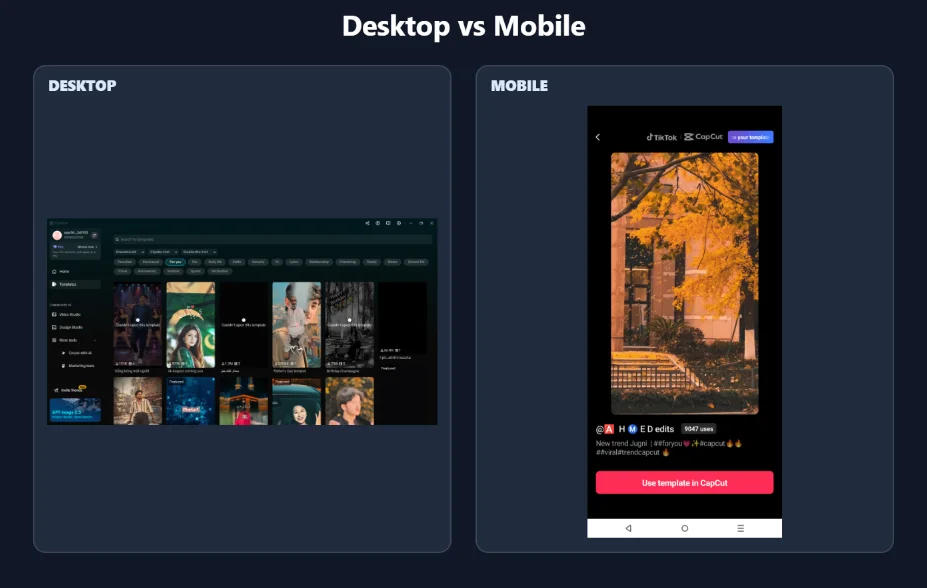
If a template is available on Mobile but not on your PC, using the mobile application is the most reliable way to access CapCut’s broader template functionality.
CapCut states that Mobile has the fullest template support, while Desktop has more limited functionality.
This is especially relevant for community templates and templates discovered through TikTok.
CapCut Templates Not Showing on PC: What to Check
If you cannot find templates on CapCut Desktop, check these points:
- Look for the Templates section on the CapCut Desktop home screen.
- Update CapCut Desktop if you are using an older version.
- Sign in to your CapCut account.
- Check your internet connection.
- Consider regional availability.
- Remember that Desktop has more limited template support than Mobile.
- Try CapCut Mobile if the template you want is available there but not on PC.
Why a Template May Appear on Mobile but Not PC
CapCut’s platforms do not offer identical template functionality.
The Mobile app provides the broadest access to templates and supports template workflows that are not fully available on Desktop. CapCut also says that some templates can be restricted by region or account.
Therefore, seeing a template on Mobile while not seeing it on PC can be a platform or availability difference rather than a fault with your computer.
The Bottom Line
If CapCut Templates are not showing on PC, first check whether your Desktop version has a Templates section and whether CapCut is updated and signed in.
If you are looking for a specific template that you found on Mobile or TikTok, remember that CapCut does not provide identical template functionality across platforms. Some templates and template workflows are available on Mobile but may not be available on Desktop. Regional and account availability can also affect what you see.
If the template is important and you cannot find it on PC, checking the same template through CapCut Mobile is the most appropriate next step.


