
CapCut Voiceover Glitching or Not Previewing — What’s the Issue & How to Fix It
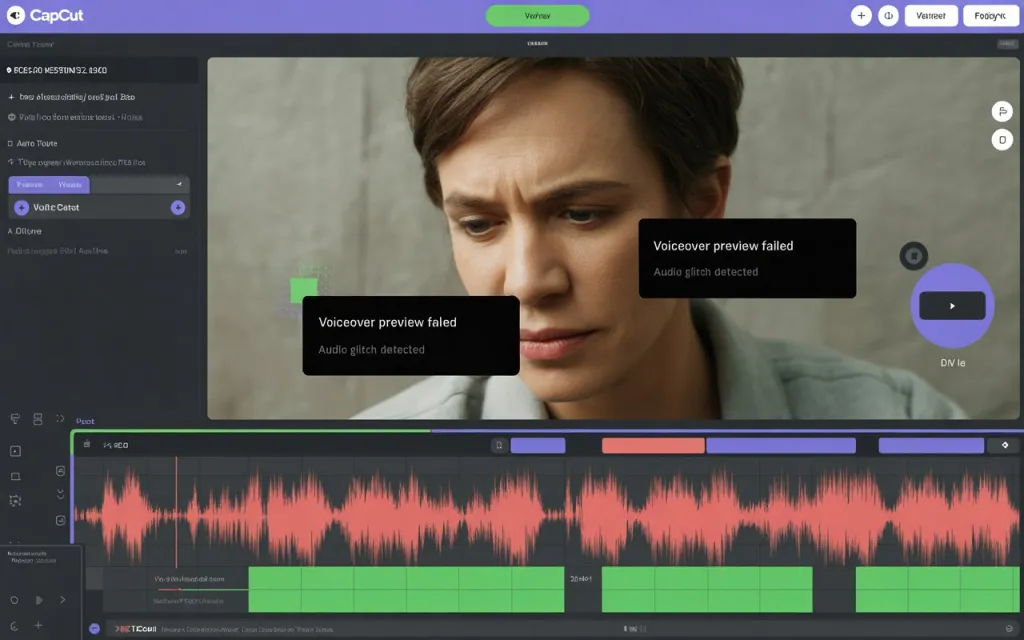
Voiceover tools are one of CapCut’s strongest features, but many Android and PC users report that recorded audio either glitches, lags, or doesn’t preview at all. This issue is especially common after recent updates or on older/low-RAM devices.
Below is a full breakdown of why voiceovers malfunction and how to fix them.
✅ Why CapCut Voiceovers Glitch, Lag, or Don’t Play
CapCut voiceover problems usually come from one of these:
1. High CPU/RAM Usage
If your phone or PC is already under heavy load, CapCut cannot render voiceovers smoothly.
Symptoms:
- Stuttering during preview
- Audio desync
- Voiceover not playing at all
2. Damaged or Corrupt Project Cache
CapCut stores temporary audio data. When this cache becomes corrupt, the voiceover timeline fails to load properly.
3. Microphone Permission Conflicts
Android often blocks background mic access for security reasons. CapCut may lose access mid-recording.
4. Audio Format Conflicts
Imported audio files that are:
- Variable bitrate (VBR)
- High bitrate (320 kbps+)
- Not fully supported
…may not preview correctly.
5. Buggy New Updates
Recent CapCut updates sometimes introduce audio playback bugs, especially for voiceovers and AI voice features.
6. Slow Storage / Overfilled Memory
If internal storage drops too low, audio processing becomes unstable.
7. Timeline Overload
Too many layers, effects, filters, or transitions can prevent audio tracks from previewing smoothly.
🔧 How to Fix CapCut Voiceover Not Previewing or Glitching
1. Clear Cache (MOST EFFECTIVE)
- Open CapCut
- Go to Settings
- Tap Clear cache
Then restart the app.
2. Force Stop CapCut
- Go to Settings → Apps → CapCut
- Tap Force Stop
- Reopen the app
This resets audio playback processes.
3. Free RAM
Close Instagram, TikTok, Chrome, WhatsApp, games, etc.
CapCut performs poorly if less than 800MB RAM is free.
4. Convert Your Audio First
Use an audio converter (MP3 128kbps CBR or WAV recommended).
Avoid using TikTok-downloaded audio files—they often cause glitches.
5. Check Microphone Permissions
- Settings → Apps → CapCut → Permissions
- Enable Microphone, Storage, and Nearby Devices
6. Move Voiceover Track to a Clean Timeline Section
Sometimes the timeline segment where you placed the audio is corrupted.
Try moving the voiceover to a new empty track area.
7. Disable “Hardware Acceleration” (PC Version)
On the CapCut desktop app:
- Go to Settings → Performance
- Turn off hardware acceleration
This fixes audio stuttering for many users.
8. Reinstall CapCut
If nothing works, uninstall and reinstall.
This resets all audio engines.
9. Export to Test
Even if preview glitches, export may still produce clean audio.
Do a short test export to confirm.
🧪 Temporary Workaround (If Preview Won’t Work at All)
If voiceover still doesn’t play:
- Export video without voiceover
- Import that exported video as one clip
- Add voiceover on top in a fresh project
This bypasses timeline corruption.
🛑 When the Problem Is a Known Bug
Some updates break voiceover preview for many users until the next patch.
In such cases, your only options are:
- Install an older version (Android only)
- Wait for CapCut to fix it in the next update


