
🎵 How to Add Music from Spotify or YouTube into CapCut (2026 Full Guide)
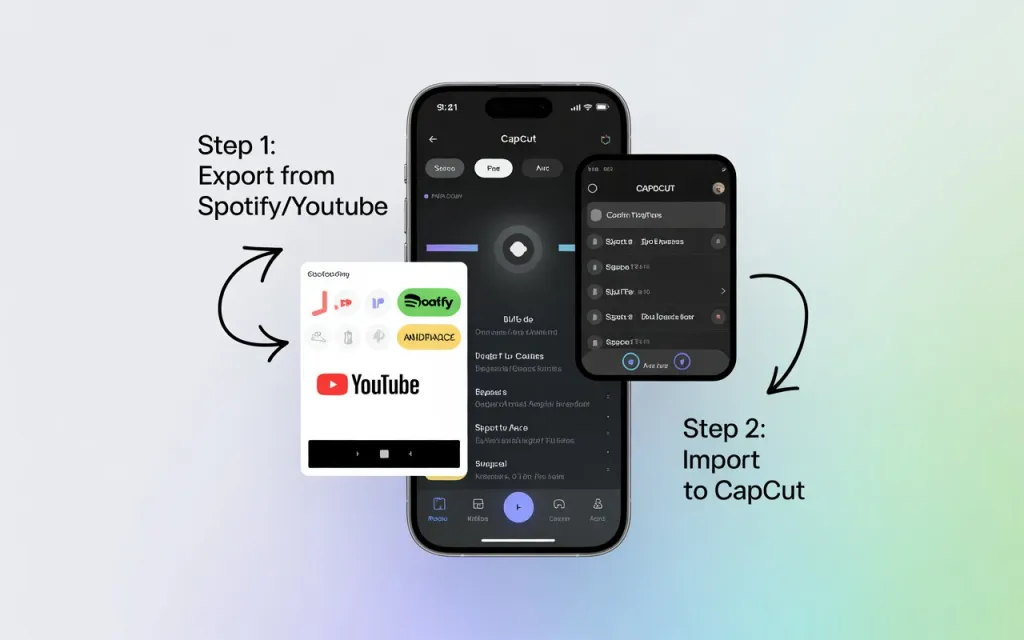
Adding the right music can transform your video from ordinary to unforgettable. If you’ve ever wondered how to use music from Spotify or YouTube in your CapCut projects, this detailed guide explains everything — from importing tracks to handling copyright safely — following Google’s E-E-A-T (Experience, Expertise, Authoritativeness, and Trustworthiness) principles.
🎧 Why Music Matters in CapCut Videos
Music sets the emotional tone, defines the pacing, and can even make your clips go viral. Using trending songs or iconic background tracks instantly connects with audiences. However, importing from Spotify or YouTube requires understanding both the technical steps and copyright guidelines.
⚠️ Before You Begin: Read This Legal Note
CapCut doesn’t have direct integration with Spotify or YouTube due to copyright protection.
Here’s what you should know before adding music:
- Spotify songs are DRM-protected, meaning they can’t be directly imported.
- YouTube tracks (except those from YouTube Audio Library) may be copyrighted.
- You can only use these tracks for personal edits — not for commercial or monetized use unless you own rights or licenses.
- For public uploads, always use royalty-free or licensed audio.
🪄 Method 1: Add Spotify Music to CapCut
While you can’t import directly from Spotify, you can still use your favorite songs through a legal conversion process.
Step 1: Convert Spotify Tracks to MP3
Use a legal converter like:
- TuneMobie Spotify Converter
- Macsome Spotify Downloader
- DRmare Music Converter
These convert Spotify music into MP3 or WAV formats while keeping quality intact.
Step 2: Import to CapCut
- On Desktop:
Open CapCut → Media → Import → Select your converted file → Add to timeline. - On Mobile:
Transfer your MP3 file to your phone → Open CapCut → Audio → Your Sounds → From Device → Select the track.
Step 3: Sync and Edit
- Trim your music to match your video length.
- Use Fade In/Out to smooth transitions.
- Adjust volume levels so the music doesn’t overpower your dialogue or effects.
✅ Pro Tip: Use CapCut’s Beat Sync feature to automatically align music with your video transitions.
🎶 Method 2: Add YouTube Music to CapCut
YouTube offers thousands of tracks you can use — but again, make sure you’re following copyright rules.
Step 1: Get Audio Legally
You have two safe options:
- Use YouTube Audio Library:
These tracks are 100% free and cleared for use. - Use Your Own Licensed Music:
If you own a track or have permission, download it using a legal converter.
Step 2: Import into CapCut
- Desktop/Web:
Go to Media → Import → Choose your audio file. - Mobile:
Transfer your file → Open CapCut → Audio → Your Sounds → From Device.
Step 3: Edit and Sync
Drag your music to the timeline.
- Use Split Tool to match beats with transitions.
- Add fade effects for smoother beginnings or endings.
- Combine multiple songs by trimming and crossfading them together.
🧩 Audio File Compatibility
CapCut supports the following audio file formats:
- MP3
- WAV
- AAC
- M4A
Keep your converted tracks within these formats for the best compatibility.
💡 Pro Editing Tips
- Use AI Beat Sync (CapCut Desktop/Web) to match visuals automatically.
- Fade in your intro and fade out the outro for a professional feel.
- Layer voiceovers or sound effects over music for storytelling depth.
- Preview your video with headphones to ensure clear audio balance.
- Keep your total music volume between –10 dB to –5 dB for export quality.
🧠 Common Mistakes to Avoid
🚫 Using copyrighted music without rights — even for short clips.
🚫 Forgetting to trim long audio files — it causes abrupt endings.
🚫 Overlapping too many sounds — this reduces clarity.
🚫 Ignoring sync — music not matching visuals ruins flow.
🔍 FAQs
Q1. Can I import Spotify songs directly into CapCut?
No. Spotify’s DRM prevents direct use. You must convert the song into MP3 or WAV format first.
Q2. Can I use YouTube music for monetized videos?
Only if it’s from YouTube’s Audio Library or you have permission/license. Otherwise, it risks copyright claims.
Q3. What is the best file type for CapCut audio?
MP3 is most stable and widely supported.
Q4. Why doesn’t my music appear in CapCut mobile?
Ensure your file is saved to local storage and imported from the “Your Sounds → From Device” option.
Q5. Is there free music inside CapCut?
Yes! CapCut includes a large royalty-free music library sorted by genre, mood, and trend.
🏁 Final Thoughts
Adding music from Spotify or YouTube into CapCut isn’t complicated — you just need to do it correctly and legally.
By converting your favorite songs into supported formats and syncing them smartly, you can create videos that feel cinematic and emotionally engaging.
With the right track and timing, your next CapCut project could be the one that captures millions of hearts.


