
What Is “No Internet Problem” in CapCut?
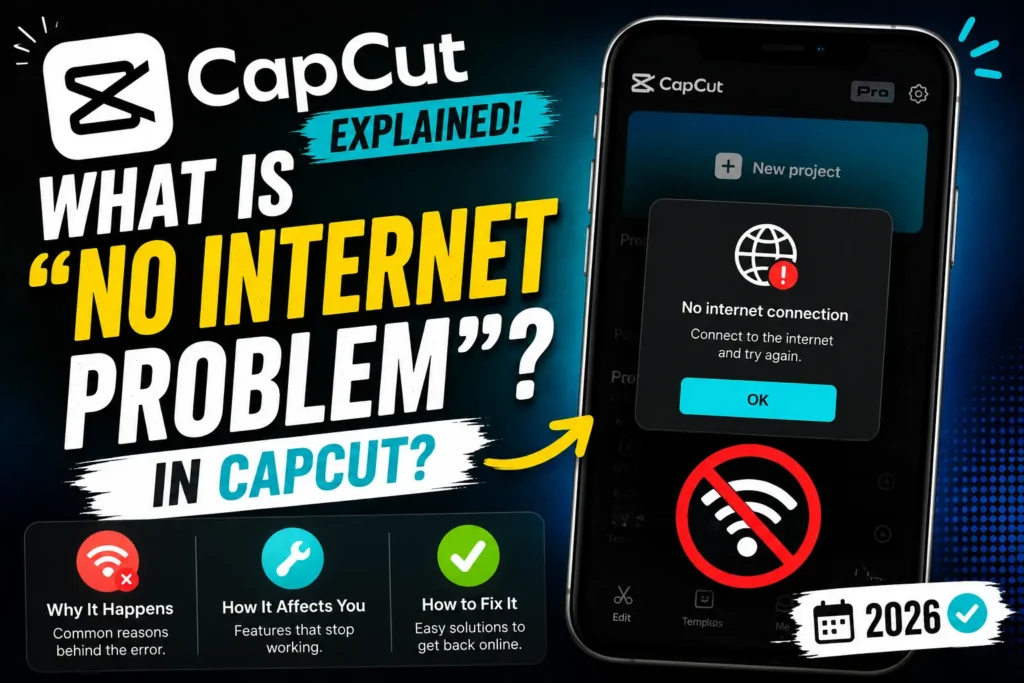
CapCut depends on live server connections for far more than you’d expect — effects, templates, fonts, stock media, cloud sync, and sometimes even export — so a “No internet connection” message while your actual connection works fine usually points to something between the app and CapCut’s servers specifically, not your network in general.
What You’ll See
“No internet connection,” “Retry loading,” “Failed to load templates/effects,” or “Download failed. Check your network” — while everything else on your device connects normally.
Why It Happens, Ranked by Likelihood
Most common — a VPN or proxy is active. CapCut detects VPN usage and blocks or restricts certain server-dependent features even when your actual connection is fine. This is the single most common cause of “online everywhere except CapCut.”
Second — a DNS or firewall block on CapCut’s specific servers. CapCut connects to multiple backend servers; if your ISP, router, school/work network, or regional filtering blocks even one of them, features relying on that server fail while general internet works normally.
Third — corrupted app cache interfering with CapCut’s ability to correctly verify its own connection status.
Fourth — outdated app version, particularly if CapCut has rotated server certificates or changed API endpoints since your installed version.
Fifth — restricted network ports, common on school, workplace, or public Wi-Fi that filters traffic more aggressively than a home connection.
Sixth — CapCut’s servers genuinely being down, rare but real, usually during maintenance windows.
Fixes, in Order of What to Try First
1. Turn off VPN or proxy. Disable it entirely and retry — this resolves the most common cause outright.
2. Confirm your actual connection works by loading something else (a browser, another app) — this rules out a genuine outage before you spend time on CapCut-specific fixes.
3. Clear cache — not full data yet. Android: Settings → Apps → CapCut → Storage & Cache → Clear Cache. iPhone: Settings → General → iPhone Storage → CapCut → Offload App (or reinstall). Restart the app afterward.
4. Update CapCut via the official Play Store or App Store — an outdated version can lose compatibility with current server endpoints.
5. Switch DNS if the above doesn’t help. Try a public DNS like Google’s (8.8.8.8 / 8.8.4.4) — some ISP or router-default DNS resolvers fail specifically on CapCut’s domains while resolving everything else fine.
6. Switch networks entirely. If you’re on public, school, or workplace Wi-Fi, try mobile data or a personal hotspot — restrictive network filtering is common on these and isn’t something you can fix from CapCut’s side.
7. Reinstall CapCut from the official Play Store or App Store as a last step if nothing else resolves it. Stick to the official source — an unofficial or modded build is a common cause of exactly this error (they frequently break the cloud sync and server verification this whole article is about), not a workaround for it.
8. Use CapCut Web as a fallback (capcut.com/editor) if the app itself keeps failing — the browser version supports most core features and isn’t affected by the same local app-level connection issues.
If CapCut Is Restricted in Your Country
Some countries restrict access to CapCut’s services entirely, which produces the same “no internet” symptoms regardless of your actual connection. If this applies to you: a VPN set to a region where CapCut operates normally is the common technical workaround, and CapCut Web accessed the same way is an alternative. Whether using a VPN to access a restricted service is something you should do is a separate question from whether it works — that depends on local law, which varies by country and isn’t something a general guide can advise on responsibly. If this matters to you, it’s worth checking your own jurisdiction’s rules on VPN use specifically, not just assuming it’s fine everywhere.
Official vs. Unofficial Versions
Worth being direct about this: connection issues are dramatically more common on modded or unofficial CapCut builds, because these versions frequently bypass or break the server verification that legitimate connectivity depends on — leading to exactly the symptoms this article covers, plus added security risk. The official app, kept updated, is meaningfully more stable on this front, not just marginally so.
Quick Reference
| Symptom | Likely Fix |
|---|---|
| “No internet” shows randomly across the app | Clear cache, restart |
| Templates specifically won’t load | Switch networks, or update the app |
| Stuck on a loading screen | Turn off VPN and relaunch |
| Cloud sync not working | Confirm you’re on the official app, not a modded version |
| General internet is fine but CapCut’s effects/assets won’t load | Try a DNS change, or reinstall from the official store |
Preventing This Going Forward
Keep CapCut updated, avoid unofficial/modded builds entirely, don’t run a VPN unless you specifically need one (VPNs commonly interfere with CapCut’s template and font servers even when otherwise well-configured), clear cache periodically, and keep CapCut Web bookmarked as a fallback for whenever the app itself is having a bad day.


