
How to Fix “Maximum Number of Attempts Reached” Issue on CapCut 2026 ?
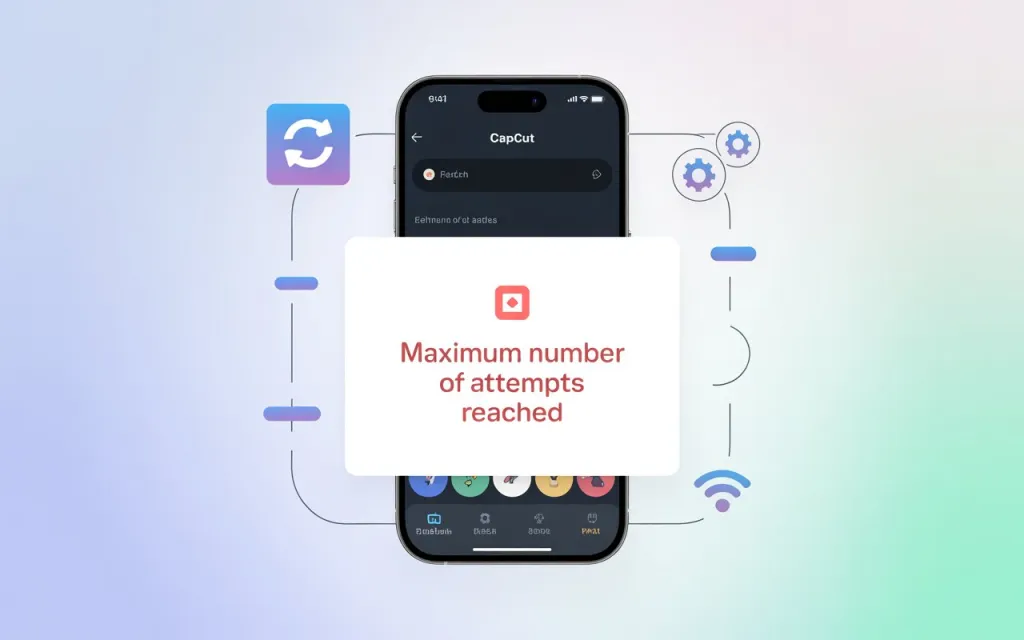
CapCut is one of the most popular video editing apps in the world, loved for its creative effects and easy-to-use interface. However, some users encounter a frustrating message: “Maximum Number of Attempts Reached”. This error often prevents you from performing certain actions like logging in, exporting, or verifying accounts.
In this detailed guide, we’ll explain why this issue happens, how to fix it step-by-step, and tips to avoid it in the future — both on mobile and PC versions of CapCut.
🔍 What Does “Maximum Number of Attempts Reached” Mean?
This error usually appears when CapCut’s security system detects too many failed login attempts, multiple export retries, or repeated verification requests within a short time.
It’s a protective measure against spam or suspicious activity, but sometimes it mistakenly locks out genuine users.
⚠️ Common Situations Where This Error Appears
You might see this message in the following cases:
- Repeated login attempts with wrong credentials.
- Frequent verification code requests (especially via email or phone).
- Multiple exports of a large video project that keeps failing.
- Switching between multiple CapCut accounts in a short time.
- Using CapCut on multiple devices simultaneously.
🧭 Step-by-Step Fix for “Maximum Number of Attempts Reached” on CapCut
Step 1: Wait and Retry Later
CapCut pro temporarily locks your account or action for security.
- Wait 30–60 minutes before trying again.
- Avoid pressing “Resend Code” or retrying the same action repeatedly.
If you can log in afterward, the problem was temporary.
Step 2: Check Internet Connection and Device Time
Incorrect device time or poor connectivity may confuse CapCut’s verification system.
- Make sure your time and date are set automatically.
- Use a stable Wi-Fi instead of mobile data.
- Restart your device once.
For tips on maintaining smooth CapCut performance, see our guide on Ways to Stop CapCut from Lagging on Any Device.
Step 3: Clear CapCut Cache (Mobile)
Too much cache data can cause login and sync problems.
- Go to Settings > Apps > CapCut > Storage.
- Tap Clear Cache (don’t clear data yet).
- Reopen the app and check if it works.
Step 4: Reinstall CapCut (Clean Installation)
If the issue persists:
- Back up your important projects (via Export or CapCut Cloud).
- Uninstall CapCut.
- Restart your device.
- Back up your important projects via CapCut XML Support.
This removes all corrupted temporary files that could trigger the issue.
Step 5: Try Logging in from Another Device
Sometimes the issue is tied to a specific device ID.
- Log in using another phone, tablet, or PC.
- If it works there, your main device may have been temporarily flagged.
Step 6: Reset Network Settings (Optional)
If the problem occurs repeatedly, try resetting your network:
- On Android: Settings → System → Reset Options → Reset Wi-Fi, Mobile & Bluetooth.
- On iPhone: Settings → General → Transfer or Reset iPhone → Reset Network Settings.
Reconnect to Wi-Fi and try again.
🖥️ Fix for PC Users (CapCut Desktop)
If you’re facing this issue on CapCut for PC:
- Sign out of your account.
- Clear temporary files:
- Press
Win + R, type%temp%, and delete the CapCut folder if found.
- Press
- Reopen CapCut and sign in again after a few minutes.
- If you used multiple accounts, stick to one for stability.
For additional workflow tips, check our guide on CapCut for YouTube Shorts: Grow Your Channel.
🛠️ Step 7: Contact CapCut Support
If none of the steps above help, contact CapCut’s official support:
- In the app → Settings → Feedback → Report a Problem.
- Describe that you’re facing a “Maximum Number of Attempts Reached” issue.
- Attach a screenshot if possible.
They can manually lift the temporary block from your account.
💡 Pro Tips to Avoid This Error in the Future
✅ Avoid pressing “Resend Code” too many times.
✅ Always log out properly before switching accounts.
✅ Keep CapCut updated to the latest version.
✅ Use a verified phone number or email for your account.
✅ Don’t use unofficial modded APKs — they often trigger login bans.
🧩 Final Thoughts
The “Maximum Number of Attempts Reached” issue is mostly a temporary security block. It can happen to anyone due to login retries, export failures, or verification loops.
By following the above steps — especially waiting, clearing cache, and reinstalling CapCut cleanly — you can usually fix it in minutes.
If it persists, CapCut’s official support can reset your access manually.
⭐ Recommended Read:
- Fix CapCut Split Errors – Complete Step-by-Step Guide
- How to Clean-Install CapCut Without Losing Projects


