
Fix Split Errors in CapCut – Complete Step-by-Step Guide (2026)
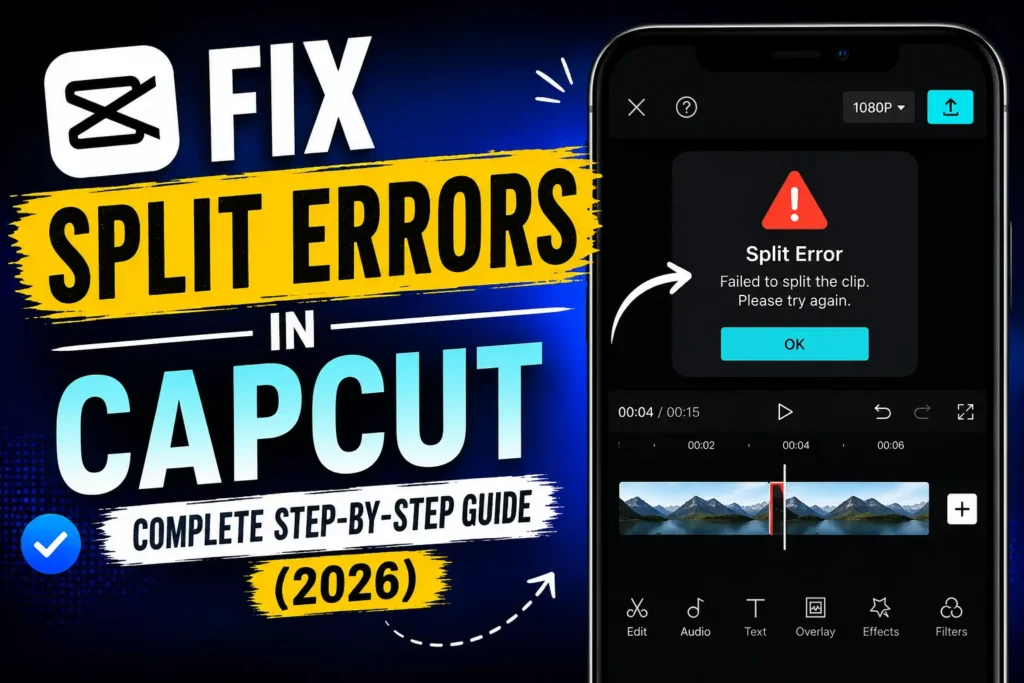
If CapCut’s Split tool won’t respond, cuts in the wrong place, skips frames, or throws a “no intersections found” error, this almost always comes down to timeline precision or a locked/linked clip — not a deep app bug, even though it feels that way mid-edit.
What Counts as a Split Error
The Split button not responding, a “no intersections found” message, the playhead jumping in large steps instead of moving frame-by-frame, unwanted gaps or missing audio/video after a split, or splitting working fine in a new project but not your current one.
Why It Happens, Ranked by Likelihood
Most common — the timeline isn’t zoomed in enough. At a zoomed-out view, CapCut can’t resolve a precise frame position to cut at, which is exactly what produces “no intersections found” — the tool isn’t broken, it genuinely can’t identify where you’re trying to split.
Second — locked or linked clips. A clip that’s locked, grouped, or linked to an overlay/audio track can silently block splitting or cause it to behave inconsistently.
Third — a corrupted project file. If split works in a brand-new test project but not your current one, the project itself (not the app) is the problem.
Fourth — unsupported or corrupted source media. Unusual codecs or a damaged file can cause the split tool to glitch specifically on that clip while working fine elsewhere.
Fifth — an app bug from a recent update. Less common, but editing tools have broken temporarily after specific updates before.
Fixes, in Order of What to Try First
1. Zoom in on the timeline before splitting. PC: mouse wheel or the zoom slider. Mobile: pinch outward on the timeline. This resolves the majority of split errors, including most “no intersections found” cases — try this before anything else.
2. Use the precise split method rather than tapping the screen. On desktop, the S keyboard shortcut or the toolbar Split button is more reliable than clicking directly on the timeline, since it splits exactly at the playhead position rather than wherever you happened to click.
3. Unlock and unlink clips if the target clip is grouped or linked to other elements — try splitting again after unlocking all relevant tracks.
4. Restart CapCut. A full close-and-reopen clears temporary state issues and resolves a real share of one-off split glitches on its own.
5. Test the same clip in a brand-new project. If it splits fine there, your original project has some corruption specific to it — worth rebuilding rather than continuing to fight the existing file. If it still fails in a fresh project, the problem is the clip or the app installation, not the project.
6. Re-encode the source file if it’s from an unusual source (downloaded from another platform, screen-recorded, or an uncommon codec). Convert to MP4 (H.264 + AAC) with any converter, then re-import — this resolves split failures tied to codec incompatibility that no amount of app troubleshooting will fix.
7. Check for an update, or roll back if the issue started right after one. If split broke immediately following a CapCut update, that’s a strong signal it’s a version-specific bug — reinstalling the previous version until a fix ships is more reliable than continuing to troubleshoot the current one.
8. Clear cache, or reinstall as a last resort. Android: Settings → Apps → CapCut → Storage → Clear Cache. PC/iOS: uninstall and reinstall. Back up your projects first — see our guide on manually extracting CapCut project files if you want a safety copy before doing this.
Advanced Fixes
Check your timeline’s frame-step setting. Confirm it’s set to move 1 frame per step — a larger step size directly causes the “jumping playhead” behavior that makes precise splitting feel impossible.
Temporarily disable heavy effects (LUTs, speed ramps, complex transitions) on the clip you’re trying to split — these can cause split lag or frame mismatch, and removing them isolates whether the effect itself is the culprit.
Use Trim instead of Split if a specific frame won’t cooperate — drag the trim handles to adjust the clip’s length manually, then split again once the clip boundary is where you need it.
Quick Reference
| Symptom | Cause | Fix |
|---|---|---|
| Playhead jumps ahead instead of moving frame-by-frame | Timeline zoomed out too far | Zoom in, use precise frame stepping |
| “No intersections found” | Trying to split at an imprecise or empty position | Zoom in and confirm you’re splitting an actual clip, not a gap |
| Audio goes out of sync after splitting | Clips were linked/unlinked incorrectly | Re-link tracks, or split both audio and video together |
| Split only works in a new project | Original project file is corrupted | Rebuild the project or restore from a backup |
| Split fails only on certain clips | Codec issue or file corruption | Convert the clip to MP4 and re-import |
Preventing This Going Forward
Always zoom in for precise cuts rather than trying to split at a distance, edit a copy of your original footage rather than the source file directly, stick to standard MP4 files where possible for the most reliable compatibility, use version-numbered project saves (Project_v1, Project_v2) so a corrupted file doesn’t cost you everything, and test a new CapCut update on a small throwaway project before trusting it with something large.


