
CapCut Web Export Errors — Full Fix Guide
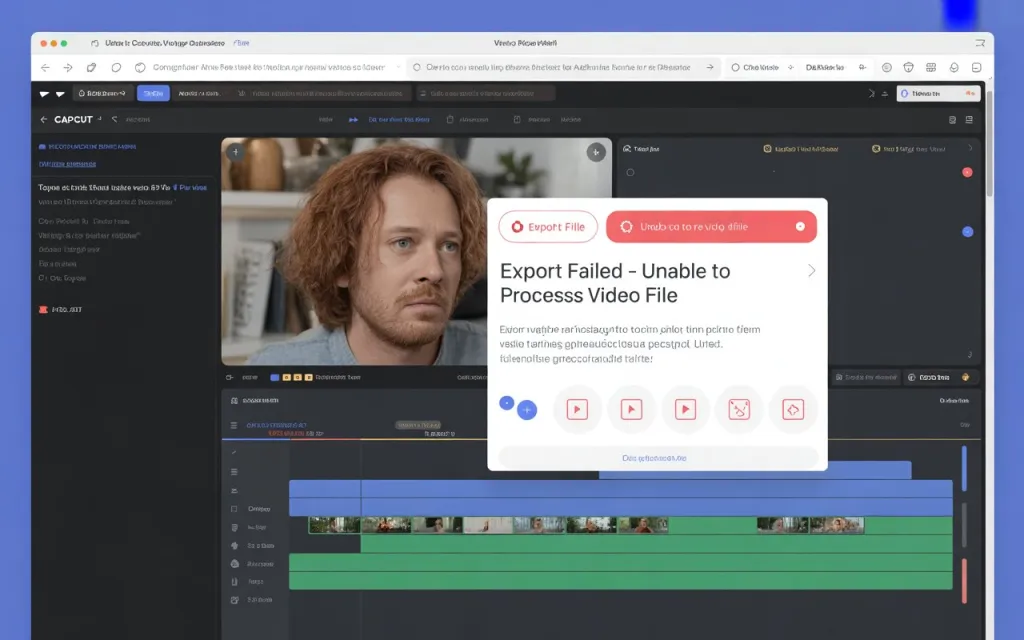
If CapCut Web export errors, freezes, or produces a corrupted file — as distinct from the editor failing to load at all — the cause usually comes down to browser limitations, project complexity, or local system resources rather than anything wrong with your account or edit.
Why It Happens, Ranked by Likelihood
Most common — project complexity exceeding what the browser can process. Long videos, multiple layers, heavy effects, and AI tools all demand real processing power — CapCut Web runs this in your browser rather than dedicated app infrastructure, so a project that would export fine on desktop can fail in-browser if it’s heavy enough.
Second — browser incompatibility or an outdated browser. Not every browser fully supports the Web APIs CapCut Web’s export process relies on — older browser versions are the most common specific cause here.
Third — unstable internet during export. Since this is a browser-based process, connection interruptions can break export mid-process in a way a native app’s local rendering wouldn’t be as vulnerable to.
Fourth — browser extensions interfering. Ad blockers, VPNs, and security extensions can block scripts or the final download itself, similar to how extensions can block the editor from loading in the first place.
Fifth — corrupted browser cache or leftover temp data.
Sixth — insufficient system resources. Low RAM or CPU on your computer affects browser-based export more directly than it would a native app optimized for local rendering.
Fixes, in Order of What to Try First
1. Use a supported, updated browser. Chrome, Edge, or Firefox — confirm you’re on the latest version, since older browsers are a common, specific cause of export failure.
2. Confirm a stable connection. Use a reliable connection and avoid heavy simultaneous internet use (large downloads, streaming) during export, since interruptions can break the process partway through.
3. Clear browser cache and cookies. Browser settings → Privacy & Security → Clear Cache/Cookies, then restart the browser and log back into CapCut Web.
4. Simplify a heavy project. Reduce video length if it’s very long, temporarily remove non-essential layers/effects/AI tools, or export in shorter segments and merge afterward — this directly addresses the most common cause (project complexity exceeding browser processing capacity).
5. Disable extensions. Turn off ad blockers, VPNs, and similar extensions, then retry — this resolves cases where a script or the download itself was being silently blocked.
6. Free up system resources. Close unnecessary programs to give the browser more available RAM and CPU, and avoid running other demanding applications simultaneously during export.
7. Try a different device if failures persist. A computer with more capable hardware and a more stable connection can succeed where a lower-spec setup consistently fails on the same project.
8. Handle the download carefully once export completes. Wait for the download link to fully appear before clicking rather than clicking prematurely, and confirm your browser’s download folder has enough free space and write permissions — a failed save can look identical to a failed export even when the export itself actually succeeded.
Preventing This Going Forward
Keep your browser updated for both performance and stability reasons. Split long projects into smaller sections proactively rather than discovering the limit mid-export. Avoid stacking too many real-time AI effects into a single export. And check your device’s available storage before exporting anything large, since a full download folder produces a failure that looks like an export problem but is actually a storage one.


![CapCut Export Stuck at 0%, 50%, or 100%? Complete Fix Guide [2026]](https://editfixer.com/wp-content/uploads/2026/07/high-level-description-a-2026-youtube-th_UN-xII6RUNeQFHlgF_ILKg_5t4RPxzERiGFobN6uW1TCw-768x480.webp "✅ CapCut Export Stuck at 0%, 50%, or 100%? Complete Fix Guide [2026] 7")